Uses of a Keyboard Essential Skills for Better Work Speed
Published: 19 Mar 2026
Some people type quickly and finish their work without mistakes, while others struggle with simple tasks. The reason is often that they do not fully understand the uses of a keyboard. Every key has a function that can make typing faster, help organize work, and reduce errors. When you use shortcuts, navigate software efficiently, and learn which keys do what, your daily tasks become much easier.
I have seen beginners improve their speed and confidence in just a few days by focusing on these tips. Knowing the uses of a keyboard helps you work smarter, complete tasks faster, and feel more comfortable in front of the computer. It changes the way you handle documents, emails, and other digital tasks and makes working on a computer less stressful and more enjoyable.
So, guys, next, we will look at the main ways a keyboard can improve your daily tasks and productivity.
Uses of a Keyboard Step By Step
Typing on a keyboard is something we do every day, but most people do not realize its full power. Each key and shortcut can make work faster, easier, and less tiring.
Let’s explore the uses of a keyboard step by step so you can work smarter and feel more confident.
- Type Faster with a Keyboard
- Send Emails Without Errors
- Navigate Apps Using Keyboard
- Save Time with Keyboard Shortcuts
- Format Text Quickly with Keyboard
- Enter Data Efficiently
- Control Games & Media
- Search Online Faster with Keyboard
- Switch Between Apps Instantly
- Copy, Cut, and Paste Easily
- Select Text Without Mouse
- Access Hidden Keyboard Functions
- Customize Keyboard Commands
- Reduce Strain While Typing
- Boost Productivity with a Keyboard
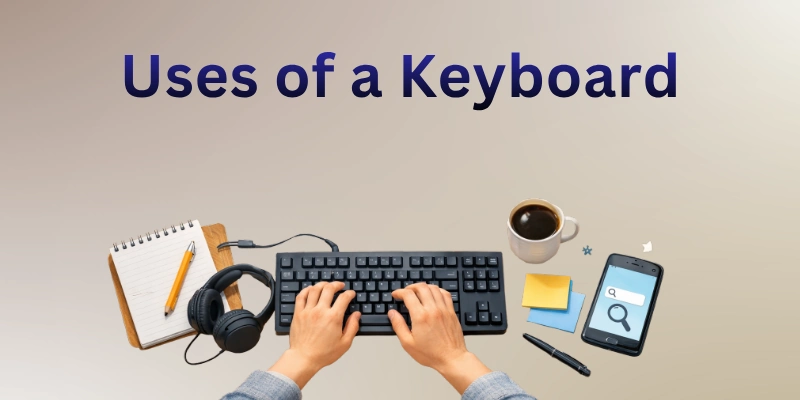
Let’s see how each keyboard use can help you.
1. Type Faster with a Keyboard
Typing speed can make a big difference in daily work. When you know the keyboard well, you complete documents quickly without feeling tired. Every finger movement matters, and proper hand placement helps avoid mistakes.
Practicing common words and phrases regularly builds speed naturally. Over time, you notice tasks finish faster, and productivity improves. Using the keyboard efficiently also makes online work smoother and less stressful.
- Place fingers on home row
- Practice typing common words daily
- Avoid looking at the keyboard
- Use both hands for speed
2. Send Emails Without Errors
Writing emails becomes easier when you use the keyboard correctly. You can type faster, format messages clearly, and avoid mistakes. Knowing shortcuts for copy, paste, and undo saves time. Checking spelling while typing prevents embarrassing errors. Using the keyboard efficiently gives confidence when communicating online. It also reduces frustration during long email threads.
- Use shortcuts to copy and paste.
- Check spelling while typing
- Format messages neatly and fast
- Review content before sending
3. Navigate Apps Using Keyboard
Moving between apps is much faster with keyboard knowledge. Instead of switching with a mouse, you can jump from one window to another instantly. Shortcuts help open programs, switch tabs, and close tasks quickly. Learning these functions makes daily computer use smooth. You save time and reduce unnecessary clicks every day. Efficient navigation also keeps your focus on work instead of searching menus.
- Switch apps using Alt+Tab
- Open programs with shortcuts
- Close windows quickly and fast
- Move between tabs instantly
4. Save Time with Keyboard Shortcuts
Using keyboard shortcuts can change how you work every day. They allow you to perform tasks in seconds instead of minutes. Learning even a few shortcuts saves repeated clicking and scrolling. Many professionals rely on these tricks to finish work faster and reduce stress.
Shortcuts help with opening apps, copying content, and switching between tasks smoothly. Practicing them regularly makes using a computer more natural and enjoyable.
- Copy and paste in seconds
- Switch between windows instantly
- Open programs without a mouse
- Undo mistakes quickly anytime
5. Format Text Quickly with Keyboard
Making your documents look clean and organized becomes easier when you know keyboard commands. You can bold, italicize, or underline text in a few keystrokes. Formatting paragraphs, lists, and headings also becomes faster without reaching for the mouse.
Proper formatting saves time and makes your work more professional. It allows you to focus on content instead of manual adjustments. With practice, you will complete reports and notes more efficiently than ever before.
- Bold or italicize text fast
- Create lists with keyboard commands
- Adjust headings without a mouse
- Align paragraphs quickly and easily
6. Enter Data Efficiently
Typing data accurately and quickly is crucial in many jobs and school tasks. Using the keyboard properly reduces errors and speeds up spreadsheets, forms, and reports. You can navigate cells, copy values, and fill information without constantly switching to a mouse.
Efficient data entry also keeps your focus on the work instead of hunting for keys. Consistent practice improves speed and builds confidence. Over time, entering data becomes smooth and stress-free.
- Navigate spreadsheet cells quickly
- Copy and fill values efficiently
- Avoid constant mouse switching
- Type large data accurately
7. Control Games & Media
Playing games or using media becomes much easier when you know the keyboard. You can control movement, volume, and playback without touching the mouse. Keyboard shortcuts help pause, rewind, or skip content instantly.
Many gamers rely on key combinations to perform actions faster and more accurately. Using the keyboard efficiently also improves reaction time and focus. Learning these controls makes both work and entertainment smoother.
- Adjust volume using keyboard keys
- Play, pause, or skip content
- Move characters quickly in games
- Control media without a mouse
8. Search Online Faster with Keyboard
Finding information on the internet is faster when you use keyboard shortcuts. You can open new tabs, switch between search results, and quickly copy links. Searching with keys saves time compared to constant mouse clicks.
Using shortcuts also helps keep your hands on the keyboard and your workflow steady. It improves efficiency whether you research, shop, or browse daily. Mastering these functions makes online work more productive and less tiring.
- Open new tabs quickly
- Switch between search results
- Copy links without a mouse
- Jump to the address bar
9. Switch Between Apps Instantly
Moving between applications is simple when you rely on keyboard commands. You can toggle windows, switch documents, and manage tasks efficiently. Shortcuts reduce the time spent clicking icons and navigating menus. Using keys to switch apps keeps your workflow continuous and focused. Professionals often save hours by learning these functions. Practicing app-switching shortcuts makes multitasking easier and less stressful.
- Toggle windows with the keyboard
- Switch documents quickly
- Minimize clicks and delays
- Manage tasks without a mouse
10. Copy, Cut, and Paste Easily
Working with documents becomes much faster when you master copying, cutting, and pasting with the keyboard. You can move text or data without dragging it with a mouse. Learning these commands reduces mistakes and makes editing smoother.
Many people save significant time by relying on keyboard shortcuts instead of right-click menus. Using these functions correctly also helps organize work efficiently. Practicing them regularly makes editing feel natural and stress-free.
- Copy text instantly using keyboard keys anywhere
- Cut content quickly without touching the mouse
- Paste information in documents or forms fast
- Repeat these actions to edit efficiently
11. Select Text Without Mouse
Highlighting words, sentences, or paragraphs is simple when you use keyboard shortcuts. You can select large blocks of text quickly and accurately. This method reduces hand movement and avoids fatigue from constant dragging.
Selecting text with keys also speeds up editing and formatting. Professionals often combine selection with copy, cut, or paste commands for efficiency. Practicing this skill improves your workflow and keeps tasks smooth.
- Highlight words quickly using Shift and arrows
- Select entire sentences without moving hands
- Use arrow keys to choose text efficiently
- Highlight large paragraphs without touching the mouse
12. Access Hidden Keyboard Functions
Many keyboards have functions that people often overlook. Keys like F1 to F12, function combinations, and special shortcuts can simplify tasks. Knowing these hidden commands lets you perform advanced actions without searching menus.
You can adjust settings, open tools, or trigger software features instantly. Mastering these functions improves productivity and reduces unnecessary clicks. Learning one function at a time makes it easy to remember and use effectively.
- Use F1 to instantly open help menus
- Access advanced tools using key combinations
- Trigger hidden software features very quickly
- Discover useful shortcuts to save time
13. Customize Keyboard Commands
Many people do not realize that keyboards allow customization. You can assign shortcuts to specific programs or actions. This helps you complete frequent tasks faster without memorizing long commands.
Custom commands also reduce mistakes and make your workflow smoother. Adjusting your keyboard to your style saves time and energy every day. Practicing these shortcuts gradually makes them second nature.
- Assign shortcuts for your most used programs easily
- Set custom keys to perform frequent actions
- Change commands to improve daily workflow efficiency
- Save recurring tasks directly on keyboard keys
- Adjust keyboard layout to suit your style
14. Reduce Strain While Typing
Typing for long hours can cause hand and wrist fatigue. Using the keyboard properly helps reduce strain and prevent discomfort. Correct posture and key placement improve comfort while working. You can also use shortcuts to minimize unnecessary movements. Regular breaks combined with proper technique keep hands healthy. This approach makes daily typing tasks less tiring and more productive.
- Maintain correct hand and wrist posture always
- Place fingers on home row for comfort
- Use keyboard shortcuts to reduce extra movement
- Take short breaks frequently while typing tasks
- Keep wrists relaxed and straight during work
15. Boost Productivity with a Keyboard
A keyboard is one of the most powerful tools to improve productivity. Knowing key functions and shortcuts allows you to finish tasks faster. You can switch apps, format documents, and enter data efficiently. Using these techniques reduces mistakes and keeps your workflow smooth. Professionals often save hours daily by mastering these functions. Practicing consistently makes every computer task easier and more productive.
- Learn keyboard shortcuts for common daily tasks
- Switch between programs quickly without using the mouse
- Format documents faster using only keyboard commands
- Enter large amounts of data accurately and efficiently
- Reduce mistakes and save time on tasks
Common Keyboard Mistakes to Avoid
Many people use the keyboard every day, but small mistakes often reduce efficiency. These errors can slow typing, cause fatigue, or create frustration over time. Understanding what to avoid helps you work faster, stay comfortable, and protect your hands. By fixing common habits, you can make keyboard use smoother and more productive.
- Looking at keys: constantly watching your fingers while typing slows your speed and breaks focus, making work less efficient.
- Incorrect hand placement: Placing your hands wrongly on the keyboard can cause strain, reduce typing accuracy, and lead to discomfort over time.
- Ignoring shortcuts: skipping useful keyboard shortcuts wastes time on repetitive tasks and prevents you from working smarter every day.
- Pressing keys too hard: striking keys with extra force tires your fingers and wrists faster, making long typing sessions exhausting.
- Using only one hand: relying on a single hand for typing limits speed, creates extra effort, and makes multitasking harder.
- Skipping breaks: avoiding short pauses during typing causes sore wrists and fingers, reducing productivity and increasing fatigue over time.
- Typing with poor posture: sitting incorrectly, or bending over the keyboard, can lead to long-term back, neck, and wrist pain while working.
Final Thought: Uses of a Keyboard
So guys, in this guide, we have covered the uses of a keyboard in detail, exploring how each key, shortcut, and function can help you type faster, organize work, and improve productivity. We also discussed common mistakes to avoid, ways to reduce strain, and how to make the keyboard work for your personal style.
By applying these techniques, you can complete tasks more efficiently, feel confident while working, and enjoy a smoother computer experience every day. I truly appreciate you taking the time to read carefully, and I hope these tips make your digital life easier and more productive.
Take care and happy typing! Don’t skip the next part of the FAQs. I hope you will find something more interesting, so don’t miss it. If you miss it, you may lose something new.
FAQS: Uses of a Keyboard
Let’s check out the FAQs and uncover more tips on the uses of a keyboard.
A keyboard allows you to type text, enter data, and navigate your computer. You can use it for writing documents, sending emails, and controlling applications. Shortcuts help complete tasks faster. Overall, it is essential for almost all computer work.
Using proper hand placement and practicing regularly helps one type faster. Learning common shortcuts also reduces unnecessary movements. Faster typing saves time on emails, reports, and data entry. Consistency and practice are key.
Yes, using shortcuts, navigation keys, and commands lets you control the computer entirely. You can open apps, switch tasks, and format text. This is faster for experienced users. Some people work efficiently without touching a mouse at all.
Maintain proper posture, use ergonomic keyboards, and take regular breaks. Shortcuts reduce repetitive movements. Adjust key height and hand placement. These steps prevent strain and improve comfort.
Keyboards let programmers type code accurately and use shortcuts in IDEs. Special keys like Tab and Ctrl combinations increase speed. Navigation and editing are faster than using a mouse. Efficient coding depends on keyboard mastery.
Shortcuts like Ctrl+C, Ctrl+V, or Alt+Tab reduce clicks. They let you copy, paste, or switch apps instantly. This saves minutes during work or browsing. Mastering shortcuts improves overall efficiency. It helps you complete tasks with less effort.
Function keys perform special tasks like opening help menus, refreshing pages, or adjusting volume. They can speed up work in programs. Learning their use makes daily tasks easier. They are hidden but powerful features. Many users do not use them fully in daily work.
Shortcuts like Alt+Tab or Windows+Tab let you toggle apps instantly. It avoids constant clicking on the taskbar. Switching apps quickly improves multitasking. This saves significant time during work. It also keeps your workflow smooth and uninterrupted.
Yes, many keyboards and software allow assigning shortcuts to favorite actions. This improves workflow efficiency. Custom commands reduce repetitive steps. Personalized setups save time daily. It also makes tasks easier based on your needs.



- Be Respectful
- Stay Relevant
- Stay Positive
- True Feedback
- Encourage Discussion
- Avoid Spamming
- No Fake News
- Don't Copy-Paste
- No Personal Attacks
- Be Respectful
- Stay Relevant
- Stay Positive
- True Feedback
- Encourage Discussion
- Avoid Spamming
- No Fake News
- Don't Copy-Paste
- No Personal Attacks
