Types of Keys on a Computer Keyboard Every User Must Know
Published: 17 Mar 2026
Many people use a keyboard every day but still struggle with certain keys. I have seen students and office workers waste time because they do not clearly understand the types of keys on a computer keyboard. When you learn what each key does, typing becomes faster and daily tasks feel much easier. This small bit of knowledge can save time and reduce frustration while working on a computer.
In this guide, I will explain these keys in a simple way so you can use your keyboard more confidently. You will also notice how small shortcuts and key groups can improve your workflow during daily tasks. Once you understand this clearly, using a keyboard will feel much more natural and comfortable.
So, guys, without wasting time, let’s explore the types of keys on a computer keyboard and see how each group works.
Types of Keys on a Computer Keyboard Step By Step
A computer keyboard contains several groups of keys, and each group performs a specific task. Many users type daily but rarely notice how these keys are organized. When you understand them properly, using a keyboard becomes much easier and faster.
Let’s quickly look at the main key groups found on a computer keyboard.
- Typing Keys
- Function Keys
- Control Keys
- Navigation Keys
- Numeric Keypad Keys
- Special Purpose Keys
- Multimedia Keys
- Shortcut Keys
- Macro Keys
Now, let’s understand the types of keys on a computer keyboard and see how each one works in daily use.
1. Typing Keys
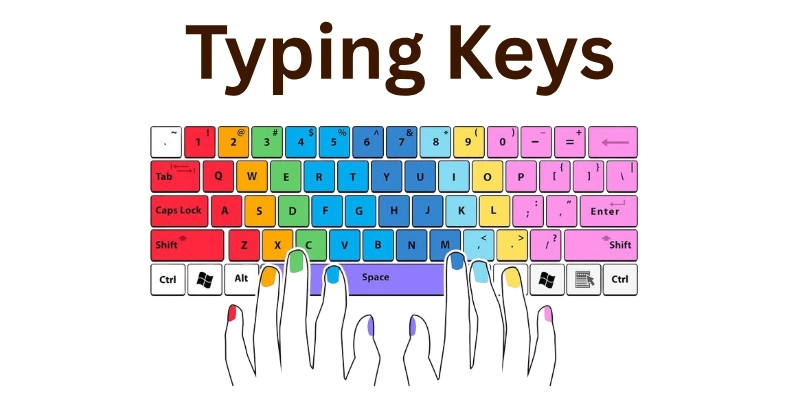
Typing keys, also called alphanumeric keys, make up the largest section of a computer keyboard. They include letters, numbers, and commonly used symbols. These keys help you input text and data into documents or applications. Most keyboards follow the QWERTY layout, which makes typing faster once you get used to it. Learning these keys properly can reduce mistakes and improve your overall typing efficiency. Even a few minutes of focused practice daily can make a big difference in speed and accuracy.
Uses of Typing Keys
- Typing letters for essays, articles, and documents.
- Entering numerical data for calculations or spreadsheets.
- Writing emails, messages, and reports.
- Filling out forms and login credentials online.
- Adding punctuation and symbols for proper sentence structure
- Communicating through chat apps and social media platforms.
Tip:
Place your fingers on the home row and practice regularly to improve typing speed and accuracy.
Example:
Typing “Hello, how are you?” uses letters, punctuation, and the spacebar from the typing keys, showing how everyday sentences rely on this key group
2. Function Keys
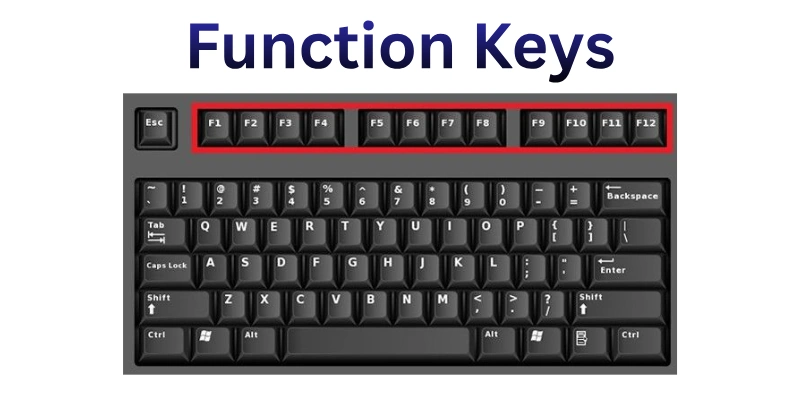
Function keys, labeled F1 to F12, sit at the top of most keyboards. They are designed to perform special tasks and shortcuts quickly. Each key can have different functions depending on the program you’re using.
For example, F1 often opens the help menu, while F5 refreshes a webpage. Knowing how to use function keys can save time and make your workflow smoother. Even basic familiarity with these keys can improve efficiency when working with documents, browsers, or software tools.
Uses of Function Keys
- Pressing F1 opens the help menu in many programs.
- F2 is used to rename files or folders quickly.
- F3 helps search for files or text inside applications.
- F5 refreshes webpages or reloads documents in many programs.
- F7 often checks spelling and grammar in word processors.
- F12 opens the save-as dialog in some software applications.
Tip:
Combine function keys with the Ctrl or Alt key for shortcuts that speed up daily tasks.
Example:
Pressing F5 in your browser quickly reloads a webpage without clicking the refresh button, saving time.
3. Control Keys
Control keys help you manage your keyboard and computer efficiently. Keys like Ctrl, Alt, and Shift allow you to perform shortcuts, modify commands, and navigate programs faster. These keys do not produce characters on the screen but are essential for performing multiple tasks with fewer steps. When used in combination with other keys, they make repetitive actions simpler and more precise. Learning how control keys work can significantly enhance your typing and workflow efficiency. Most experienced computer users rely heavily on control keys every day.
Uses of Control Keys
- Ctrl+C copies selected text or files.
- Ctrl+V pastes copied content instantly.
- Alt+Tab switches between open applications quickly.
- Shift+Arrow selects multiple items or text at once.
- Ctrl+Z undoes recent actions in most software.
- Alt+F4 closes the current window or program immediately.
Tip:
Practice common key combinations to perform tasks faster without using the mouse.
Example:
Using Ctrl+Z after deleting a paragraph in Word instantly restores the content, saving effort and time.
4. Navigation Keys
Navigation keys are designed to help you move around documents, spreadsheets, and webpages efficiently. They include keys like the arrow keys, Home, End, Page Up, and Page Down. Unlike typing keys, they do not produce letters or numbers but are essential for controlling the cursor.
These keys make it easier to edit text, scroll through files, and manage large amounts of information quickly. Understanding them reduces reliance on a mouse and speeds up your workflow. Even basic knowledge of navigation keys can save you time in daily computer use.
Uses of Navigation Keys
- Moving the cursor up, down, left, or right using the arrow keys.
- Jumping to the beginning of a line with the Home key.
- Going to the end of a line using the End key.
- Scrolling up or down a page with Page Up/Page Down.
- Navigating large spreadsheets or tables efficiently.
- Selecting text when combined with the Shift key for editing.
Tip:
Combine arrow keys with Shift to select multiple lines or words quickly.
Example:
Pressing Home in a Word document instantly moves the cursor to the start of the current line.
5. Numeric Keypad Keys
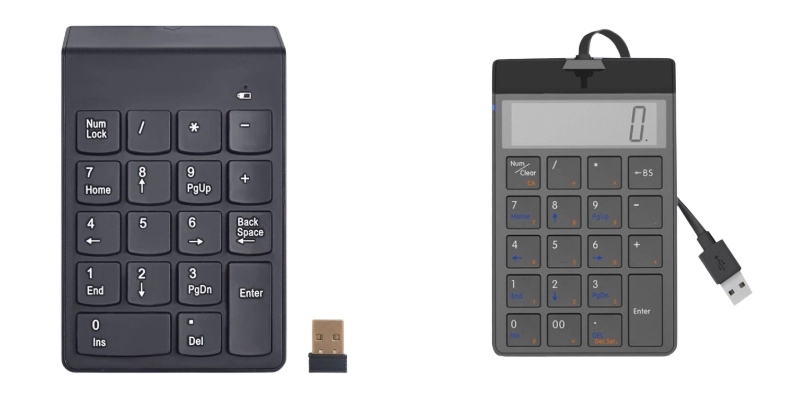
The numeric keypad is a section on the right side of many keyboards, mostly found on full-sized layouts. It contains numbers, arithmetic symbols, and the Enter key, allowing faster numeric input. These keys are essential for accounting, data entry, and mathematical tasks.
They reduce the need to use the numbers above the letters, making typing more efficient for calculations. Even if you rarely use it, knowing the numeric keypad layout improves speed in spreadsheets and calculators. With practice, it can save a lot of time for users handling numbers regularly.
Uses of Numeric Keypad Keys
- Entering numbers quickly in spreadsheets or forms.
- Performing calculations with +, -, *, / symbols.
- Using Num Lock to switch between numeric input and navigation.
- Inputting PINs or passwords in secure applications.
- Performing fast data entry for accounting and finance tasks.
- Navigating cells in spreadsheets when combined with the Enter or Tab keys.
Tip:
Always keep Num Lock on when using the keypad for faster numeric input.
Example:
Typing a long list of numbers in Excel using the numeric keypad is much faster than using the number row above the letters.
6. Special Purpose Keys
Special-purpose keys handle unique functions that improve control and interaction with software and the operating system. Examples include Esc, Print Screen, Insert, and Pause/Break. These keys are not used for typing letters or numbers but perform important tasks quickly.
They can help capture screenshots, interrupt processes, or switch modes in applications. Learning their uses enhances productivity and allows smoother navigation across different programs. Even occasional familiarity can make complex tasks much simpler.
Uses of Special Purpose Keys
- Esc cancels operations or exits menus.
- “Print Screen” captures a screenshot of your screen.
- Insert toggles between insert and overwrite modes.
- Pause/Break can pause processes in some programs.
- The Windows key opens the Start menu quickly.
- The menu key opens context menus for selected items.
Tip:
Use Print Screen with Alt to capture only the active window instead of the whole screen.
Example:
Pressing Esc while a video is loading in a browser stops the loading process immediately.
7. Multimedia Keys
On modern keyboards, multimedia keys let you manage audio and video instantly. You can adjust volume, play, pause, or skip tracks without switching programs. Many users find them helpful during presentations or online classes. Controlling media directly from the keyboard saves time and effort. Even casual users can benefit from learning what each key does. With a little practice, media control becomes fast and natural.
Uses of Multimedia Keys
- Quickly increase or decrease volume while working or gaming.
- Muting sound during meetings or calls.
- Playing or pausing music with a single press.
- Skipping forward or backward between tracks.
- Stopping media playback instantly.
- Controlling video or audio in presentations efficiently.
Tip:
Assign your most-used media controls to easy-to-reach keys for smoother workflow.
Example:
Pressing the Mute key stops all sound immediately during an unexpected phone call.
8. Shortcut Keys
Keyboard shortcuts make repetitive tasks faster and easier. Combining keys like Ctrl, Alt, or Shift can help you copy, paste, save, or undo actions instantly. Professionals and students rely on shortcuts to save time. They reduce dependency on the mouse and streamline everyday workflows. Even learning a handful of shortcuts can improve productivity. Over time, using them becomes automatic and effortless.
Uses of Shortcut Keys
- Ctrl+C copies text, images, or files instantly.
- Ctrl+V pastes copied content quickly.
- Ctrl+S saves documents or projects without delay.
- Ctrl+Z undoes mistakes efficiently.
- Alt+Tab switches between programs rapidly.
- Ctrl+F finds words or data in documents instantly.
Tip:
Focus on learning 5–10 shortcuts first, then gradually add more to your routine.
Example:
Using Ctrl+S while drafting a report ensures your work is saved automatically without interrupting your flow.
9. Macro Keys
Advanced keyboards include macro keys that perform multiple actions at once. By pressing a single button, you can run sequences of commands. Gamers, designers, and programmers often use them to save time. Programming macros for repetitive tasks reduces errors and increases efficiency. Even simple macros can automate daily work. Once set up, they make complex tasks much faster.
Uses of Macro Keys
- Execute multiple commands with a single press.
- Automate repetitive tasks in software or games.
- Launch applications instantly.
- Perform complex editing functions in design tools.
- Combine several shortcuts into one key.
- Speed up coding or development processes.
Tip:
Begin with simple macros before moving to complex sequences to avoid mistakes.
Example:
Pressing a macro key can open your email, launch a spreadsheet, and start a timer all at once.
Common Mistakes While Using Keyboard Keys
Many people use keyboards every day, yet small mistakes can slow typing and reduce efficiency. Ignoring proper finger placement or relying too heavily on the mouse can create long-term habits that are hard to break. Even experienced users sometimes make errors that affect speed and accuracy. Being aware of these common mistakes helps improve typing productivity and comfort.
- Incorrect finger placement: Using the wrong fingers for keys leads to slower typing and more errors.
- Pressing keys too hard: Hitting keys forcefully can wear out your keyboard faster and tire your hands.
- Ignoring posture: Poor posture while typing can cause discomfort and reduce typing speed.
- Overusing backspace: Relying on backspace for corrections slows down overall typing efficiency.
- Skipping home row practice: Not practicing on the home row limits speed and accuracy.
- Neglecting to clean the keyboard: Dirt and dust can cause sticky or unresponsive keys over time.
- Using shortcuts improperly: Misusing Ctrl, Alt, or Shift combinations reduces productivity instead of saving time.
Conclusion: Types of Keys on a Computer Keyboard
In this guide, we have covered the types of keys on a computer keyboard. You now understand how each key group works and how it supports your daily computer tasks. As you move forward, remember that this guide covers all the key types in a simple, practical way to make learning easier.
This knowledge can help you type faster, reduce mistakes, and feel more confident while working. With regular practice, you will notice a clear improvement in your speed and accuracy. Thank you for taking the time to read this guide, and I hope it helped you learn something valuable. Don’t skip the next part of the FAQs. I hope you will find something more interesting, so don’t miss it. If you miss it, you may lose something new.
FAQS: Types of Keys on a Computer Keyboard
Now, let’s move to some important FAQs about types of keys on a computer keyboard to clear your remaining doubts.
The types of keys on a computer keyboard include typing keys, function keys, control keys, navigation keys, and numeric keypad keys. Each group performs a specific role in daily computer use. These keys help users type, control programs, and move around files easily. Learning these categories makes keyboard usage simpler and more effective.
Most standard keyboards have five main types of keys. These include typing, function, control, navigation, and numeric keys. Some modern keyboards also include multimedia and special-purpose keys for added features. This variation depends on the design and purpose of the keyboard.
Function keys, labeled F1 to F12, perform special tasks in software. For example, F1 opens help, and F5 refreshes pages. Their function may change depending on the program you are using. Understanding them can improve your workflow in different applications.
Navigation keys help move the cursor on the screen. These include arrow keys, Home, End, Page Up, and Page Down. They make it easier to edit text and scroll through documents. Using them reduces dependency on the mouse.
Macro keys are programmable keys found on advanced keyboards. They allow users to assign multiple commands to one key. This helps automate repetitive tasks. They are mostly used by gamers and professionals.
The Enter key is used to move to the next line or confirm actions. It plays a key role in typing and commands. This key is used frequently in daily tasks. It helps in executing instructions quickly. It is also used to submit forms and run commands in many applications.
The spacebar creates spaces between words while typing. It is one of the most used keys on a keyboard. It helps make text readable and properly formatted. Without it, text would appear crowded. It also supports smooth typing flow while writing long content.
Typing keys and control keys are used the most. Keys like Enter, Spacebar, and Backspace are also frequently used. These keys support daily computer tasks. They are essential for a smooth workflow. Regular use of these keys improves typing speed over time.


- Be Respectful
- Stay Relevant
- Stay Positive
- True Feedback
- Encourage Discussion
- Avoid Spamming
- No Fake News
- Don't Copy-Paste
- No Personal Attacks
- Be Respectful
- Stay Relevant
- Stay Positive
- True Feedback
- Encourage Discussion
- Avoid Spamming
- No Fake News
- Don't Copy-Paste
- No Personal Attacks
