Parts of the Computer Complete Guide to Learn Every Component
Published: 30 Jan 2026
Have you ever asked yourself why your computer sometimes slows down even when it looks fine? The answer is hidden in the parts of the computer. Every component, from the CPU to the hard drive, affects performance in its own way. Some parts work harder than others, and even a small issue can create big delays.
I have helped many people solve computer problems just by understanding these parts. Once you know how each part works, you can prevent problems before they happen and keep your system running smoothly. In this article, we have covered all the key parts of the computer to help you improve speed and efficiency.
Let’s jump into the article and learn all about the parts of the computer
Computer System Overview
A computer system is a combination of hardware and software working together to perform tasks. It processes information, stores data, and allows you to run applications efficiently. Understanding the main components helps you use your computer better and solve problems faster. Each part plays a unique role in keeping the system active and reliable.
Central Processing Unit (CPU): Controls all operations and executes instructions from software programs.
Memory (RAM): Stores temporary data for fast access while running applications.
Storage Devices: Keep permanent data on hard drives, SSDs, or external drives.
Input Devices: Allow you to interact with the system using a keyboard, mouse, or touchscreen.
Output Devices: Display results and information through monitors, printers, or speakers.
Motherboard: Connects all components and ensures smooth communication between them.
Parts of the Computer Step by Step
A computer works because all its parts perform their roles perfectly. Each component, from the processor to the input devices, has a specific job that keeps the system fast and reliable. Understanding these parts helps you use, maintain, and troubleshoot your computer more confidently. Let’s explore them step by step to see how everything works together.
Here is a quick list of the main parts of the computer.
- Central Processing Unit (CPU)
- Random Access Memory (RAM)
- Motherboard
- Storage Devices
- Power Supply Unit (PSU)
- Graphics Processing Unit (GPU)
- Input Devices
- Output Devices
- Cooling System
- Network Interface Card (NIC)
- Optical Drives
- Casing/Chassis
Let’s take a closer look at each part of the computer.
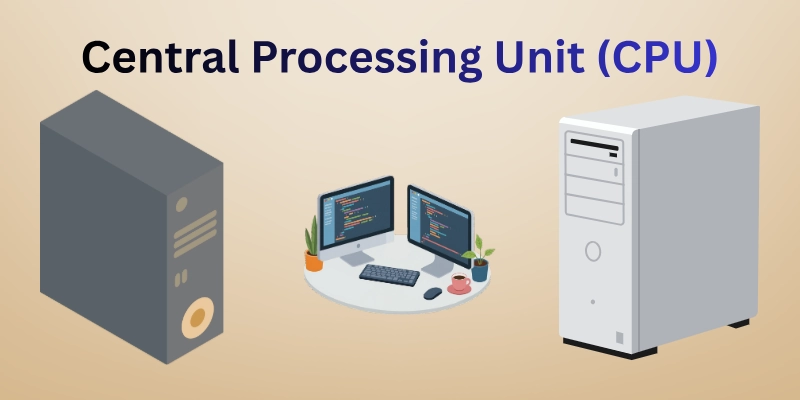
1. Central Processing Unit (CPU)
The CPU is the brain of the computer, running programs and controlling all operations. It processes instructions and sends commands to other parts of the system. A fast CPU makes your computer responsive and efficient. Modern CPUs handle billions of instructions per second. Knowing the CPU helps you choose the right computer for work, gaming, or creative tasks.
- Clock Speed and Frequency: Determines how fast the CPU executes instructions per second.
- Cores and Threads Count: Multiple cores allow the CPU to handle several tasks at the same time.
- Cache Memory Levels: Stores frequently used data for quick access to improve performance.
- Thermal Design Power (TDP): Indicates how much heat the CPU produces and affects cooling needs.
2. Random Access Memory (RAM)
RAM is a temporary memory that stores data and programs currently in use. It helps the CPU access information quickly and improves system speed. More RAM allows you to run multiple applications smoothly without slowing down your computer. RAM is essential for gaming, video editing, and multitasking. Understanding RAM helps you optimize performance and choose the right amount for your needs.
- Size and Capacity Limits: Determine how much data the system can handle at once.
- DDR Type Versions: Different DDR generations affect speed and motherboard compatibility.
- Transfer Speed (MHz Rating): A higher speed allows faster data exchange with the CPU.
- Latency and Timing: Lower latency improves responsiveness for applications and games.
- Dual Channel Setup: Using multiple sticks increases efficiency and allows future upgrades.
3. Motherboard
The motherboard is the main circuit board that connects all components of a computer. It allows the CPU, RAM, storage, and other devices to communicate effectively. A strong motherboard ensures stable performance and supports future upgrades. Different motherboards offer various features for gaming, workstations, or general use. Understanding the motherboard helps you choose the right system and expand it later.
- Form Factor Types: Determines the size and layout, affecting compatibility with cases.
- Chipset Features: Controls communication between the CPU, memory, and peripherals.
- Expansion Slots Availability: Provides slots for graphics cards, sound cards, and other devices.
- Integrated Ports and Connectivity: Includes USB, HDMI, Ethernet, and audio connections for devices.
- Power Delivery System: Ensures stable electricity to all components for reliable operation.
4. Storage Devices
Storage devices hold all your data, programs, and files for long-term use. They keep your information safe even when the computer is turned off. Different storage types offer varying speed, capacity, and reliability.
Choosing the right storage device affects performance and how quickly you can access data. Understanding storage helps you manage space and improve system efficiency.
- Hard Disk Drives (HDDs): Mechanical drives with large capacity but slower speed.
- Solid State Drives (SSDs): Faster performance and lower power consumption than HDDs.
- NVMe Drives: Ultra-fast storage using the PCIe interface for high-speed data transfer.
- External Storage Options: Portable drives for backup and transferring files easily.
- RAID Configurations: Combine multiple drives for redundancy, speed, or both.
5. Power Supply Unit (PSU)
The PSU provides power to all the components of a computer. It converts electricity from the wall into the correct voltage and current needed by the system. A reliable PSU ensures stable operation and prevents damage to sensitive parts. Choosing the right PSU affects performance, efficiency, and the lifespan of your computer. Understanding the PSU helps you select the proper wattage and protect your system from power issues.
- Wattage Rating Selection: Determines how much power the PSU can safely deliver to all components.
- Efficiency Certification (80 Plus): Indicates energy efficiency and reduces wasted electricity.
- Modular and Non-Modular Cables: Modular designs allow better cable management and airflow.
- Protection Features Included: Protects the system from overvoltage, short circuits, and overheating.
- Form Factor Compatibility: Ensures the PSU fits properly in the case and matches the motherboard layout.
- Cooling System Type: Fans and passive designs prevent overheating and maintain stable operation.
6. Graphics Processing Unit (GPU)
The GPU is responsible for rendering images, videos, and animations on your computer. It takes the load off the CPU by handling graphics-intensive tasks. A powerful GPU improves gaming, video editing, and 3D design performance.
Modern GPUs can process thousands of calculations simultaneously, making visuals smoother and faster. Understanding the GPU helps you choose the right one for your needs and optimize overall system performance. GPUs are essential for both professional work and entertainment applications.
- VRAM Capacity Importance: Determines how much graphics data can be stored for quick access.
- Core Clock and Speed: Higher clock speeds increase rendering performance for games and applications.
- Cooling Solutions Used: Fans or liquid cooling keep the GPU temperature stable during heavy tasks.
- Interface and Slot Type: PCIe versions affect compatibility and data transfer speed with the motherboard.
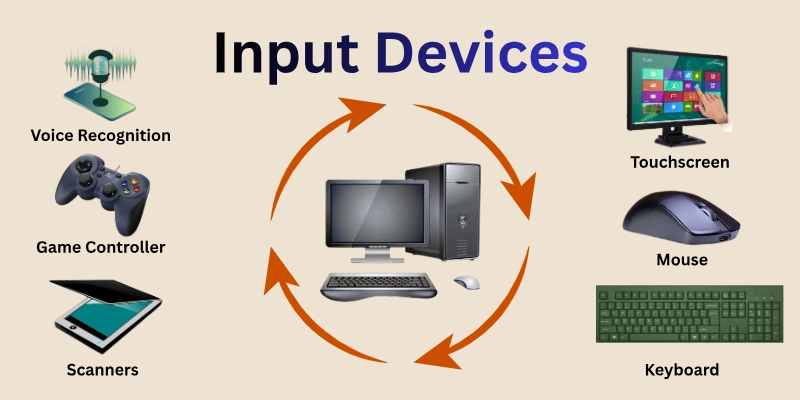
7. Input Devices
Interaction with a computer begins through input devices, which send commands to the system. Every keystroke, click, or touch provides information that the CPU processes instantly. Common tools such as keyboards, mice, and touchscreens handle most daily tasks, while scanners and game controllers add extra functionality.
Efficiency and comfort improve when devices match your needs and workflow. Learning how each device works allows users to work faster, reduce errors, and enjoy a smoother computing experience.
- Keyboard Types and Layouts: Mechanical, membrane, and ergonomic keyboards affect typing experience.
- Mouse Variations Explained: Optical, laser, and wireless mice impact precision and convenience.
- Touchscreen Technology Used: Capacitive and resistive screens respond differently to touch input.
- Scanners and Imaging Tools: Capture physical documents and images digitally for editing or storage.
- Game Controller Features: Joysticks, gamepads, and wheels improve interactive experiences.
- Voice Recognition Devices: Convert spoken words into digital commands for hands-free control.
8. Output Devices
Output devices let a computer share results with the user in different forms. Visuals appear on monitors, sounds come through speakers, and documents can be printed for offline use. Some devices focus on displaying information, while others provide audio or physical copies.
Picking the right output device can make your work faster and more comfortable. Learning how each device works helps you use your computer more effectively and enjoy a better experience.
- Monitor Types and Sizes: LCD, LED, and OLED screens vary in resolution, brightness, and color quality.
- Printer Technology Explained: Inkjet, laser, and thermal printers differ in speed, quality, and maintenance.
- Speaker Systems Features: Stereo, surround, and Bluetooth speakers impact sound clarity and immersion.
- Projectors and Display Tools: Provide large-scale visual output for presentations and entertainment.
- Haptic Feedback Devices: Deliver tactile responses in gaming, simulations, and interactive applications
9. Cooling System
Excess heat may slow down a computer and damage important components over time. Removing this heat ensures the CPU, GPU, and other parts stay within safe temperatures. Fans, heat sinks, and liquid cooling solutions work together to keep systems stable.
During gaming or heavy multitasking, efficient cooling helps maintain smooth performance. Selecting the right method can extend your computer’s lifespan significantly. Monitoring how these systems operate allows you to prevent overheating and maintain reliability.
- Air Cooling Solutions: Fans and heat sinks circulate air to reduce internal temperature.
- Liquid Cooling Systems: Use water or coolant to transfer heat away from critical components.
- Thermal Paste Application: Improves heat transfer between the CPU/GPU and cooling hardware.
- Fan Placement and Size: Proper fan arrangement enhances airflow and reduces hot spots.
- Case Ventilation Design: Airflow pathways in the case support effective heat dissipation.
- Temperature Monitoring Tools: Sensors and software track heat levels and alert users if needed.
10. Network Interface Card (NIC)
Network Interface Cards, commonly called NICs, allow computers to connect and communicate over networks. Data travels through the NIC to other devices using wired or wireless connections. The performance of a NIC depends on its design and how well it matches your system.
Today’s NICs provide fast internet speeds and support modern networking technologies. Knowing how an NIC functions helps you maintain strong connections for work, gaming, or streaming. Choosing the right card ensures reliable data transfer and keeps your network stable.
- Ethernet Port Specifications: Different speeds like 100 Mbps, 1 Gbps, and 10 Gbps.
- Wireless Standards Supported: Wi-Fi 5, Wi-Fi 6, and newer protocols.
- Duplex and Bandwidth Options: Full or half duplex affects data transfer efficiency.
- NIC Driver Software: Updates improve compatibility and performance.
- Multiple NIC Configurations: Use two or more cards for redundancy or load balancing.
- Advanced Features Included: VLAN support, Wake-on-LAN, and network offload capabilities.
11. Optical Drives
Optical drives read and write data using laser technology on discs like CDs, DVDs, and Blu-rays. They allow users to store large files, install software, or watch movies directly from discs. Performance depends on the drive’s speed, disc type, and interface with the computer.
Modern computers use optical drives less often, but they remain useful for backups and media access. Knowing how an optical drive works helps you choose the right disc and format for your tasks. Selecting a reliable drive ensures smooth reading and writing without errors or interruptions.
- CD, DVD, and Blu-ray Types: Different discs store varying amounts of data.
- Read and Write Speeds: Faster drives reduce waiting times for files.
- Internal vs. External Drives: Portability and installation options vary by type.
- Laser Lens Technology: Determines accuracy and longevity of reading/writing.
- Drive Interface Connections: SATA, USB, or IDE affect compatibility and speed.
- Error Correction Features: Prevent data loss and improve reliability during access.
12. Casing/Chassis
The computer casing, or chassis, holds all the internal parts and shields them from dust and damage. Inside, it provides mounting points for the motherboard, power supply, storage drives, and cooling systems. Case sizes like ATX, Micro-ATX, and Mini-ITX affect which components can fit properly.
Good ventilation and airflow inside the chassis keep temperatures at safe levels. Choosing the right case helps protect hardware while improving performance and organizing cables efficiently. Knowing the features of a chassis makes it easier to pick one that suits both your system and personal preferences.
- Form Factor Compatibility: Supports ATX, Micro-ATX, and Mini-ITX motherboards.
- Material and Build Quality: Steel, aluminum, or tempered glass affects durability.
- Cooling System Options: Space for fans, radiators, and airflow optimization.
- Drive Bay Configurations: Support for SSDs, HDDs, and optical drives.
- Front Panel Connectivity: USB, audio, and other ports placement for access.
- Aesthetic Features Included: RGB lighting, tempered glass, and design style.
Expansion Cards and Slots
Expansion cards add extra features to a computer, such as better graphics, sound, networking, or storage. They connect to the motherboard through slots like PCI, PCIe, or AGP. Performance depends on the slot type and motherboard compatibility. Installing the right card can improve gaming, multimedia, or professional tasks. Knowing how expansion cards and slots work helps you upgrade your system safely and efficiently.
- Graphics Cards (GPU Options): Enhance video rendering and gaming performance.
- Sound Cards for Audio: Improve sound quality and support advanced audio setups.
- Network Cards and Adapters: Enable wired or wireless connectivity for faster networking.
- Storage Controller Cards: Add extra ports for SSDs, HDDs, or RAID configurations.
- Slot Types and Compatibility: PCI, PCIe, and AGP connections vary by motherboard.
- Installation and Maintenance Tips: Proper seating, driver updates, and cleaning ensure smooth operation.
Conclusion
In this guide, we have covered parts of the computer in a clear and structured way to help you understand how a computer works from the inside out. Each section was written to make complex hardware concepts easier for beginners and more useful for regular users.
From my personal experience, learning about computer parts builds confidence and helps you make better decisions when buying, upgrading, or fixing a system. I sincerely appreciate your time, and thank you for reading this guide with patience and interest. Don’t skip the next part of the FAQs. I hope you will find something more interesting, so don’t miss it. If you miss it, you may lose something new.
FAQS:
These are some quick questions people regularly ask about the parts of the computer. The answers are written to help you understand without confusion.
The main parts of the computer include the CPU, monitor, keyboard, mouse, and storage devices. Each part plays a specific role in how the computer works. Together, these components allow users to input data, process information, and get results. Knowing these parts helps beginners understand how a computer functions and how to use it effectively.
The parts of the computer are important because each one performs a unique function. If one part fails, the computer may not work properly. Understanding these parts helps users troubleshoot issues and use systems more efficiently. Learning about these components also makes it easier to upgrade or maintain your computer.
The CPU is the brain of the computer that processes instructions and controls operations. It performs calculations and manages data flow between components. Without a CPU, the computer cannot function. A faster CPU improves overall system speed and makes programs run more efficiently.
RAM stores temporary data that the computer needs while running programs. More RAM allows faster multitasking and smoother performance. It helps applications load quickly and respond better. Increasing RAM can prevent slowdowns when using multiple programs at the same time.
Storage devices save data permanently, even when the computer is turned off. Common examples include hard drives and solid-state drives. They store files, software, and the operating system. Faster storage improves loading times and overall system responsiveness.
The motherboard connects all parts of the computer together. It allows components like the CPU, RAM, and storage to communicate. Every computer needs a motherboard to function properly. It also determines which hardware features and upgrades the system can support.
The power supply unit provides electricity to all computer components. It converts power from the wall into usable energy. A reliable PSU protects hardware from power damage. It also helps the system run smoothly by keeping power flow stable and consistent.
A graphics card processes images, videos, and animations. It improves visual quality for gaming, design, and video editing. Some computers use built-in graphics, while others use dedicated cards. Dedicated graphics cards handle heavy tasks more smoothly and reduce the load on the main processor. Selecting the right graphics card enhances performance and delivers a better visual experience.
Expansion cards add extra features to a computer, such as better sound or networking. They connect through slots on the motherboard. These cards help customize and upgrade systems. Users can improve performance without replacing the entire computer. Choosing the right expansion card makes upgrades more efficient and cost-effective.
A network interface card allows a computer to connect to the Internet or local networks. It supports wired or wireless connections. NICs help ensure stable and fast communication. This component manages how data is sent and received between devices on a network. A reliable network interface card improves online activities like browsing, streaming, and file sharing.


- Be Respectful
- Stay Relevant
- Stay Positive
- True Feedback
- Encourage Discussion
- Avoid Spamming
- No Fake News
- Don't Copy-Paste
- No Personal Attacks
- Be Respectful
- Stay Relevant
- Stay Positive
- True Feedback
- Encourage Discussion
- Avoid Spamming
- No Fake News
- Don't Copy-Paste
- No Personal Attacks
