Uses of Input Devices Boost Efficiency and Productivity
Published: 7 Mar 2026
How does a computer understand the commands you give? When you type a word, click the mouse, or scan a document, the system receives that information through input hardware. The uses of input devices allow users to send instructions and data directly to the computer, which can process them and produce results.
In this guide, we have covered how these tools help users interact with a computer in daily tasks. I work with them every day, and I see how even a simple task like opening a file begins with an input action. You will also learn how different devices make computers work faster and easier. This knowledge helps beginners understand how they can control a computer more effectively.
Uses of Input Devices Step By Step
Input devices are the tools that let you communicate with your computer. Have you ever wondered how typing, clicking, or scanning actually works behind the scenes? Understanding their role can make your computer tasks faster and more accurate.
Here is the list of the main uses of input devices
- Typing text
- Moving and clicking with the mouse
- Scanning documents
- Recording audio
- Capturing photos/videos
- Controlling games
- Entering numbers/data
- Drawing or designing
- Navigating websites
- Using a microphone/camera
Let’s check out each key use of input devices.
1. Typing text
Typing text is one of the main uses of input devices. It helps you write documents, notes, and emails quickly. Keyboards send each letter, number, or symbol directly to the computer. This makes work more accurate and organized. Typing also speeds up daily tasks when practiced regularly. You can complete assignments or messages efficiently without errors.
- Enter letters and numbers fast
- Draft emails and short messages
- Prepare reports and notes clearly
- Use keyboard shortcuts for editing
- Organize ideas in documents easily
2. Moving and clicking with the mouse
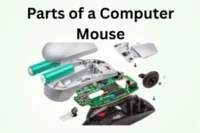
A mouse lets you point, click, and navigate your computer quickly. It helps you open files, select options, and move through software easily. Using a mouse makes tasks faster than typing commands for every action. It also improves precision when working with graphics or web pages. With practice, you can perform daily tasks more efficiently and accurately. A smooth hand movement can save time and effort during computer work.
- Move the cursor to select items
- Click icons and open files
- Highlight text and images easily
- Scroll pages and navigate smoothly
- Control objects in software accurately
3. Scanning documents
Converting physical papers into digital files has become essential in daily computer tasks. A scanner captures text and images quickly, saving time and effort. It allows you to store documents safely on your computer. Scanning also helps share information easily with others online. With clear and accurate scans, you can edit or organize files efficiently. Regular use of a scanner improves workflow and reduces paperwork.
- Convert paper documents to digital
- Capture images with high clarity
- Save files on the computer quickly
- Share scanned files online easily
- Organize scanned documents efficiently
4. Recording audio
Capturing sound is an important task for many computer activities. A microphone lets you record your voice clearly and accurately. Recording audio helps in creating presentations, podcasts, or messages. It allows you to store and share sound files easily. You can also edit and enhance recordings for better quality. Using a microphone regularly improves efficiency and ensures clear communication.
- Record voice for messages clearly
- Capture sounds for presentations quickly
- Save audio files on the computer
- Edit recordings for better quality
- Share audio with others easily
5. Capturing photos/videos
Cameras and webcams let you capture important moments easily. They help record clear photos and videos for work or personal use. You can save media digitally and share it online quickly. High-quality recordings support presentations, tutorials, or social media content. Using these devices regularly improves precision and speed with visual projects. Digital media storage also reduces the need for physical space.
- Take photos with a digital camera quickly
- Record videos for projects efficiently
- Save media files on the computer
- Edit images and videos easily
- Share media online safely
6. Controlling games
Playing games on a computer is more than just fun; it requires precise control and quick responses. Input devices like keyboards, mice, and game controllers let you interact with every element in a game. They help you move characters, select tools, and perform actions accurately.
Using these devices improves your reaction time and enhances overall gameplay. Gamers rely on input devices to navigate challenges and complete tasks efficiently. Practicing with them regularly makes controlling games smoother and more enjoyable.
- Move characters accurately using keyboard and mouse
- Select weapons or tools during gameplay efficiently
- Control game speed and actions precisely
- Navigate virtual worlds with smooth hand movements
- Perform quick actions to achieve objectives effectively
7. Entering numbers/data
Working with numbers and data is a crucial task for many computer users. Keyboards, numeric keypads, and specialized input devices make this process fast and accurate. Entering data correctly ensures calculations, records, and reports are reliable.
It helps in managing spreadsheets, forms, and databases efficiently. Input devices reduce mistakes that can happen with manual writing. Regular practice with these tools improves speed and confidence. Using them properly allows users to organize information clearly and complete tasks smoothly.
- Input numbers quickly with the numeric keypad
- Enter data accurately in spreadsheets
- Record information in online forms
- Update tables and lists efficiently
- Organize information for easy reference
8. Drawing or designing
Creating digital art and designs has become a key use of input devices. Graphic tablets, stylus pens, and mice allow precise control over lines, shapes, and colors. Designers can bring ideas to life faster and more accurately than on paper.
Using these tools helps in creating illustrations, logos, or layouts efficiently. Input devices reduce mistakes and make corrections easier while working. Regular practice improves skill, speed, and confidence in digital drawing. These tools also make collaborating and sharing designs simple and organized.
- Draw illustrations using a graphic tablet easily
- Design logos with precision and speed
- Edit colors and shapes accurately
- Create layouts for projects efficiently
9. Navigating websites
Browsing websites smoothly is an important part of using a computer. Input devices like a mouse, touchpad, or keyboard help you move from page to page quickly. They allow you to click links, scroll through content, and interact with forms easily.
Navigating websites efficiently saves time and makes finding information simple. These tools also help in online research, shopping, and learning tasks. Practicing with input devices improves speed and accuracy when browsing. Using them properly ensures a comfortable and organized online experience.
- Move the cursor to click links easily
- Scroll through pages smoothly and quickly
- Fill online forms without mistakes
- Access menus and tools efficiently
- Navigate websites for research effectively
10. Using a microphone/camera
Microphones and cameras are essential tools for communicating and creating content on a computer. They allow you to record your voice or capture live video with clarity. Using these devices helps in video calls, online meetings, and presentations.
They also let you create tutorials, podcasts, or other multimedia projects efficiently. Proper use ensures better sound and image quality while reducing errors. Regular practice improves confidence and smooth operation during recordings. These tools make sharing information and collaborating with others simple and effective.
- Record clear audio with a microphone easily
- Capture video using a camera efficiently
- Conduct online meetings and presentations
- Create multimedia projects with accuracy
- Share recordings quickly with others
Tips for Choosing the Right Input Device
Selecting the right input device can make your work faster and more accurate. Each device serves different purposes, so it’s important to consider your needs carefully. Using the proper tool improves comfort, efficiency, and overall productivity. Making the right choice also prevents errors and reduces frustration during daily tasks.
- Consider your needs: Pick a device that matches your daily tasks, workflow, and type of work for maximum efficiency.
- Check compatibility: Make sure the device works smoothly with your computer, software, and operating system without causing issues.
- Look for comfort: Choose a device that feels natural in your hands and reduces strain during long hours of use.
- Review accuracy: Select tools that offer precise control, responsiveness, and reliability for detailed work or gaming.
- Assess durability: Invest in a device built with strong materials that can handle daily use without breaking or slowing down.
- Compare features: Examine extra functions such as programmable buttons, shortcut keys, or adjustable sensitivity for better performance.
- Test before buying: If possible, try the device in real conditions to see how it feels, responds, and fits your workflow.
Conclusion
In this guide, we have covered the uses of input devices. To make the most of these tools, I recommend creating a routine where you practice regularly and handle your devices with care. Arranging your workspace neatly and taking short breaks while working can improve your focus and efficiency.
Paying attention to posture and comfort while using devices ensures smoother operation and reduces strain. Regular practice helps you become more confident with each device, making daily tasks easier. Thank you very much for reading this guide carefully; I hope the tips shared here support your learning and make your daily work more productive and enjoyable.
Take a look at the next part of the FAQs. There’s more useful and interesting content waiting, so don’t miss it. If you skip it, you may lose valuable information.
FAQS: Uses of Input Devices
Here’s a helpful FAQ section to clear your doubts on the uses of input devices.
Input devices let you enter data and commands into a computer. They help you type text, move the cursor, click icons, and interact with digital content. Common examples include keyboards, mice, and touchscreens. These basic uses make everyday computer work possible. They are essential tools for both home and office tasks.
Keyboards allow you to type letters, numbers, and symbols into a computer. They help you write documents, emails, and messages quickly. Special keys also let you edit, delete, and navigate text smoothly. This makes keyboards one of the most used input devices. They also support shortcuts that save time while working.
A mouse lets you move the cursor, click buttons, and select objects on the screen. It makes navigation simple and precise. You can open files, switch programs, and interact with menus easily. This improves your efficiency when using software. Mice are available in wired, wireless, and ergonomic designs.
Input devices help you control actions and movements in games. Game controllers, keyboards, and mice let you move characters and select tools. They allow precise timing and quick responses while playing. Gamers rely on these devices for better performance. Some devices also provide vibration feedback for a realistic experience.
Graphic tablets, stylus pens, and mice let designers draw, sketch, and shape visuals digitally. These devices provide control over line, color, and texture. Designers can create logos, illustrations, and layouts with precision. This makes digital art workflows smoother. Some devices support pressure sensitivity for detailed designs.
Microphones let you speak clearly, and webcams capture your video. These devices transmit your audio and video during online meetings or calls. They help people communicate face‑to‑face over the internet. This makes remote work and learning more effective. High-quality devices improve clarity and reduce technical issues.
Yes. Input devices help students type assignments, search for information online, and interact with educational apps. Touchscreens and keyboards make learning more interactive. They also help with online classes and research projects. This boosts engagement and learning outcomes. Students can also practice skills like coding and design efficiently.
Voice input devices like microphones capture your speech and convert it into digital sound or text. You can record audio, give commands, or dictate text. This helps users who type slowly or need hands‑free control. Voice input is also used in virtual assistants. They make tasks faster and more convenient for busy users.
Yes. Specialized input devices like adaptive keyboards and switch controls assist users with mobility challenges. Voice recognition tools help users give commands without typing. These devices make computers more accessible to everyone. They support independence and communication. Assistive devices empower users to work and learn efficiently.

- Be Respectful
- Stay Relevant
- Stay Positive
- True Feedback
- Encourage Discussion
- Avoid Spamming
- No Fake News
- Don't Copy-Paste
- No Personal Attacks
- Be Respectful
- Stay Relevant
- Stay Positive
- True Feedback
- Encourage Discussion
- Avoid Spamming
- No Fake News
- Don't Copy-Paste
- No Personal Attacks
