What Is An Input Device A Complete Guide to Work Smarter
Published: 25 Feb 2026
Sometimes it feels like your computer doesn’t understand what you want it to do, even when you try clicking, typing, or tapping. That’s because it needs hardware to receive your commands, which is where input devices come in. what is an input device?
It is any tool that allows you to send data or instructions to your computer, from typing on a keyboard to moving a mouse or using a touchscreen. Choosing the right input device can make your work faster, more accurate, and less frustrating.
In this article, we have covered the different types of input devices and how each one helps you interact with your computer more effectively.
Definition of What Is an Input Device?
An input device is hardware that lets users send data or commands to a computer. It helps control the system, enter information, and interact with software efficiently. These devices are vital for both basic and advanced computing tasks.
They ensure the computer responds accurately to human instructions. Choosing the right device can enhance productivity and ease of use.
- Sends typed, clicked, or tapped input
- Allows precise control of programs
- Captures data for office or games
- Makes navigation faster and easier
History of Input Devices
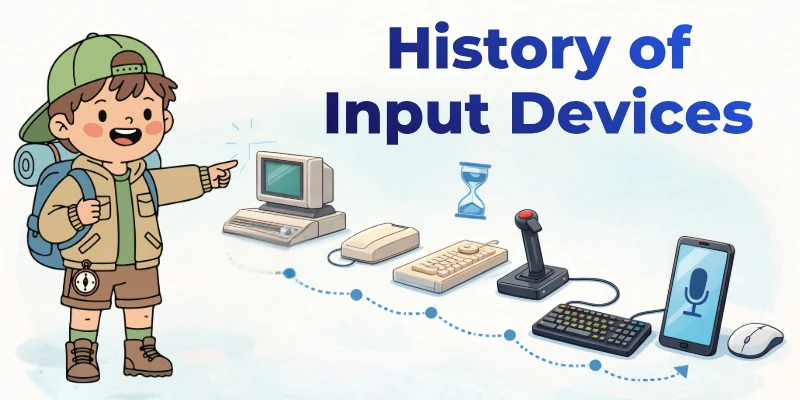
Input devices developed alongside advancements in computer technology. As machines became smaller and more practical, the tools used to control them also improved. Designers focused on making interaction faster, simpler, and more comfortable for users. These changes shaped how people communicate with digital systems today.
- Punch card systems: Operators used perforated cards to load coded instructions into room-sized machines
- Paper tape methods: Technicians fed long strips of punched tape through readers to transfer structured data.
- Terminal keyboard introduction: Manufacturers installed keyboard-based consoles for direct command entry.
- Mouse device creation: Engineers designed handheld controllers to guide on-screen movement precisely.
- Trackball implementation phase: Developers introduced stationary rolling balls for accurate pointer control.
- Touch interface emergence: Companies released screens that responded instantly to finger contact.
- Stylus pen development: Brands created digital pens for drawing and handwritten input.
- Wireless connectivity adoption: Producers enabled cable-free communication using radio-based signals.
How Input Devices Work
Input devices let you interact with your computer by capturing your actions and turning them into usable data. Each device collects input differently; some sense motion, while others detect pressure, light, or sound.
Once collected, the data travels to the computer, which interprets it for the software or application in use. Using input devices correctly can make tasks faster, reduce mistakes, and improve overall control. Understanding their function helps you work smarter and more efficiently every day.
- Detect user actions: Sense keystrokes, clicks, touches, or movements accurately.
- Translate into digital signals: Convert raw input into code that the computer can read.
- Provide device-specific processing: Handle unique functions like scanning, pointing, or voice input.
- Offer multi-format support: Accept text, images, audio, and motion from one device.
- Enable advanced control: Allow shortcuts, gestures, and programmable commands for efficiency.
- Give instant feedback: Show immediate results like cursor movement or audio response.
- Connect with peripherals: Work alongside monitors, printers, and external devices seamlessly.
Importance of Input Devices
Input devices play a critical role in making computers functional and user-friendly. They allow users to communicate commands, enter data, and interact with software effortlessly. Without these devices, completing tasks on a computer would be slow and inefficient.
They help improve accuracy, speed, and overall productivity across different applications. Understanding their importance ensures you can select the right tools for your needs.
- Boost task efficiency: Reduce time spent entering or processing data.
- Improve accuracy levels: Minimize errors when typing, selecting, or controlling programs.
- Support multitasking operations: Handle multiple commands and applications at once.
- Enhance user comfort: Provide ergonomic designs for long working sessions.
- Enable creative work: Facilitate drawing, designing, and other multimedia tasks.
- Increase system responsiveness: Ensure faster reaction to commands and inputs.
- Integrate with technology: Work smoothly with printers, displays, and other hardware.
Types of Input Devices
Computers rely on input devices to interact with users and perform tasks efficiently. Each device has a specific role, allowing you to communicate commands and provide data in different forms.
Input devices can handle information in text, audio, motion, or visual formats. Understanding their functions helps you select the best device for each task. Using the right input devices improves accuracy, speed, and overall workflow across applications.
- Keyboard for shortcuts: Execute quick commands and function keys easily.
- Mouse for precision: Control cursor movement and select objects smoothly.
- Scanner for archiving: Digitize documents and preserve them securely.
- Microphone for dictation: Convert spoken words into editable text instantly.
- Webcam for collaboration: Share live video during calls or conferences.
- Joystick for simulation: Navigate complex software or control games accurately.
- Touchscreen for convenience: Perform gestures like pinch, swipe, and tap directly.
Common Interface Connections
Interface connections link input devices to computers, enabling smooth communication and data transfer. These connections determine how fast and reliably a device interacts with the system. Different devices use specific connections, depending on their function and data requirements.
Knowing common interface connections helps you choose compatible devices for your setup. Using the right connection improves performance, reduces lag, and ensures stable operation.
- USB ports for devices: Connect keyboards, mice, printers, and external storage devices with universal compatibility, making setup simple and reliable.
- Bluetooth for wireless: Pair wireless keyboards, mice, headphones, and other peripherals without any cables, providing flexibility and mobility in workspaces.
- HDMI for video input: Transmit high-definition video and audio signals from computers or gaming consoles to monitors, TVs, or projectors seamlessly.
- Audio jacks for sound: Connect microphones, headphones, and speakers to achieve clear, high-quality audio for recording, communication, and entertainment purposes.
- Ethernet for networking: Establish fast, stable, and secure wired connections for the internet, file sharing, and online communication without interruptions.
- PS/2 ports for legacy: Support older keyboards and mice that require traditional connections, ensuring compatibility with legacy systems in offices or schools.
- Thunderbolt for speed: Enable ultra-fast data transfer and high-resolution display support for modern peripherals like external drives, monitors, and docking stations.
Advantages of Input Devices
Input devices play a major role in how we interact with digital systems today. They allow users of all skill levels to operate computers without technical training. These tools support communication, creativity, and accessibility across different platforms.
From offices to classrooms, they help people connect with technology in practical ways. Their value continues to grow as digital systems become part of everyday activities.
- Support users with disabilities
- Enable creative digital expression
- Allow real-time communication online
- Work across multiple devices
- Simplify learning for beginners
Disadvantages of Input Devices
Although input devices make computing easier, they come with some challenges. Some devices may take up extra desk space or limit mobility.
Using multiple devices can create clutter and confusion. Certain input methods may not work well for all tasks or environments. Being aware of these issues helps users plan and choose devices wisely.
- Can cause repetitive strain injuries
- May require additional software updates
- Sometimes difficult to set up correctly
- Performance can vary with device quality
- Limited support for specialized tasks
Everyday Uses of Input Devices
Input devices are essential tools that connect people to digital technology. They allow users to interact with computers and smart gadgets in practical ways.
These devices support various activities, from work and education to hobbies and entertainment. Understanding their real-life applications helps people make the most of modern technology.
- Typing large projects: Keyboards assist in creating reports, presentations, and documents efficiently.
- Navigating complex software: Mice and trackpads allow precise control of tools, menus, and editing options.
- Joining virtual meetings: Webcams and microphones enable high-quality video calls, online classes, and conferences.
- Scanning physical files: Scanners and cameras convert books, forms, and artwork into digital copies.
- Playing interactive games: Joysticks and controllers enhance responsiveness and control in gaming environments.
- Using smart devices: Touchscreens let users operate smartphones, tablets, and kiosks with gestures.
- Recording professional audio: Microphones and voice recorders capture lectures, podcasts, and musical performances.
- Creating digital art: Stylus pens and drawing tablets help design graphics, illustrations, and photo edits.
Tips for Choosing Input Devices
Selecting the right input devices ensures smooth and effective interaction with your computer. Every device comes with different features, designs, and functions that can affect your workflow.
Understanding your tasks and environment helps you pick tools that suit your needs. Making informed choices prevents frustration and enhances your overall digital experience.
- Check device compatibility: Confirm the device supports your operating system, ports, and required software.
- Evaluate build quality: Choose products made from durable materials to handle regular use over time.
- Test response Accuracy: Ensure keys, buttons, or sensors react quickly and reliably for precise input.
- Consider mobility options: Decide if you need wired, wireless, or hybrid devices for flexible setups.
- Review additional features: Look for extra buttons, customizable keys, or shortcut options that improve functionality.
- Assess workspace requirements: Measure desk space and ergonomics to fit the device comfortably.
- Investigate user support: Check warranty, manuals, and customer service availability for problem-solving.
- Compare overall value: Balance price, features, and long-term performance to get the best investment.
Conclusion
In this guide, we have covered what is an input device. While these devices make computers easy to use, they also come with limitations and risks, such as compatibility issues or wear over time.
I recommend choosing devices carefully and maintaining them regularly to balance their benefits and drawbacks. With proper care and mindful use, you can enjoy their advantages safely.
Thank you for reading this guide, and I wish you the best in exploring technology. Don’t skip the next part of the FAQs. I hope you will find something more interesting, so don’t miss it. If you miss it, you may lose something new.
FAQS: What Is An Input Device
Now, let’s move to the FAQs. We’ve answered the most important questions about input devices, so stay with me; you won’t want to miss these useful insights.
An input device is any tool that allows you to enter data or commands into a computer. Common examples include keyboards, mice, and scanners. These devices help the computer understand wha.t the user wants to do. Without input devices, controlling a computer would be difficult.
Input devices are crucial because they let users interact with computers efficiently. They allow typing, pointing, clicking, and giving commands. They improve productivity and make digital tasks easier. Every computer needs at least one input device to function properly.
Yes, smartphones and tablets have touchscreens that act as input devices. Users can tap, swipe, and type to send commands to apps. They also include microphones for voice input. Smartphones combine multiple input functions in one device.
A pointing device is an input device used to control the on-screen cursor. Mice, trackballs, and touchpads are common examples. They allow precise movement and selection of items on a screen. Pointing devices are essential for navigation in software and games.
Biometric input devices capture unique physical characteristics to identify users. Fingerprint scanners, facial recognition cameras, and iris scanners are examples. They improve security by verifying identity before granting access. Biometric devices are common in smartphones and security systems.
Microphones capture sound and convert it into digital data. They are used for voice commands, calls, recordings, and speech recognition. Microphones allow hands-free interaction with devices. They are widely used in laptops, smartphones, and smart assistants.
Absolutely Scanners capture images, text, or documents and send them to a computer. They convert physical objects into digital formats for editing or storage. Scanners are essential for offices, schools, and creative work.
A stylus is an input device used for precise drawing or writing on screens. It is common with tablets and touch-enabled laptops. Artists and designers use it for illustrations, sketches, and editing. Stylus pens provide accuracy that fingers cannot always achieve.
Yes, many modern input devices use wireless technology like Bluetooth or Wi-Fi. Wireless keyboards, mice, and game controllers reduce cable clutter. They also provide mobility and convenience. Battery life and signal strength are key considerations for wireless devices.
Barcode scanners read patterns on products and send data to computers. Retail stores, warehouses, and libraries use them for inventory management. They are fast and reduce manual entry errors. Barcode scanners improve efficiency in commercial and industrial tasks.




- Be Respectful
- Stay Relevant
- Stay Positive
- True Feedback
- Encourage Discussion
- Avoid Spamming
- No Fake News
- Don't Copy-Paste
- No Personal Attacks
- Be Respectful
- Stay Relevant
- Stay Positive
- True Feedback
- Encourage Discussion
- Avoid Spamming
- No Fake News
- Don't Copy-Paste
- No Personal Attacks
