How Computer Keyboards Work Boost Productivity Instantly
Published: 13 Mar 2026
Sometimes a key stops working, typing becomes slow, or the keyboard behaves strangely. At that moment, many users realize they do not really know how computer keyboards work. I have faced this problem while fixing typing errors and testing different keyboards for work. Understanding the basic mechanism can help you troubleshoot issues and choose a better keyboard.
In this guide, we have covered how computer keyboards work and explained what happens behind every key press. You will also learn why each small action on a keyboard turns into text on your screen so quickly.
How Computer Keyboard Work Step By Step
Pressing a key may look simple, but many small actions happen inside the keyboard at the same moment. Tiny circuits, switches, and signals work together to send your command to the computer. When you understand the steps, the whole typing process becomes much clearer.
Let’s break down the process into simple steps.
- Key Press on Keyboard
- Keycap Moves Down
- Keyboard Switch Activates
- Circuit Connects in Keyboard
- Matrix Detects Key Press
- Signal Generates Inside Keyboard
- Controller Detects the Signal
- Scan Code Generated in Keyboard
- Data is sent to the computer.
- The system reads keyboard input.
- Character Matches Keyboard Command
- Character Appears on Screen
- Typing Continues Smoothly
Let’s take a closer look at each step to see how it works.
1. Key Press on Keyboard
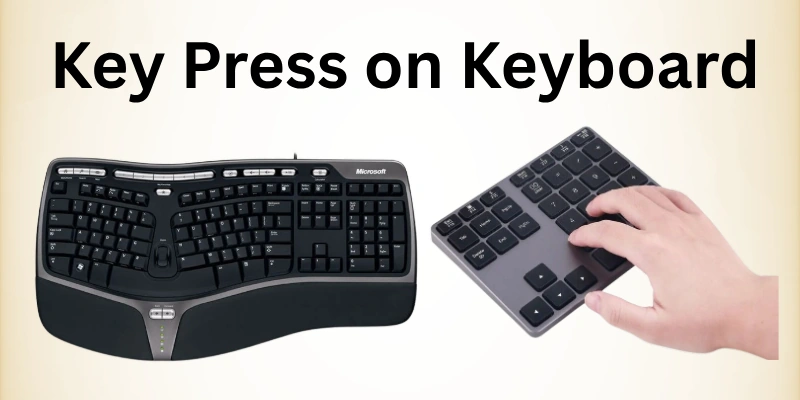
When you press a key on a keyboard, a small but important process starts immediately. The keycap moves downward, making contact with the underlying switch. This simple action begins a chain of signals that the keyboard will send to your computer.
Even though it seems instant, your finger’s press triggers electrical changes inside the keyboard. I have tested many keyboards, and it’s always fascinating to see how such a small movement starts the typing process. Understanding this first step helps you see how every key press matters.
- A finger applies gentle pressure on the key
- The keycap moves and touches the switch
- A switch completes an electrical circuit
- The keyboard prepares a signal for the controller
2. Keycap Moves Down
As soon as your finger presses the key, the keycap starts moving downward. This small movement pushes the internal mechanism below the key. The keyboard design allows the keycap to slide smoothly without getting stuck.
Inside the keyboard, guides keep the keycap stable during this motion. I have noticed while testing different keyboards that the smoothness of this movement affects the typing feel. A well-designed keycap helps the keyboard respond quickly to every press.
- Finger pressure pushes the keycap downward
- Internal guides keep the keycap stable
- A key travels toward the switch mechanism
- Movement prepares the switch for activation
3. Keyboard Switch Activates
Under each keycap, the keyboard contains a small switch that reacts to the key movement. When the key travels downward, it reaches the switch mechanism placed below it. This component plays a major role in registering the typing action.
The switch quickly responds and begins the internal process that leads to a signal. Different keyboards use various switch designs, which can affect the typing experience. From my own testing of several keyboards, I noticed that a good switch makes typing feel faster and more responsive.
- The switch reacts to downward key travel
- Internal contacts move toward the connection point
- The mechanism prepares an electrical path inside
- Activation allows the next process to start
4. Circuit Connects in Keyboard
Once the switch finishes its movement, the keyboard allows electricity to flow through its internal system. This electrical flow helps the keyboard move the process forward. Inside the keyboard, small conductive layers guide the signal through a planned path.
These layers connect different parts of the keyboard hardware. I noticed during hardware inspection that these connections must stay very precise to avoid tying errors. A clean and stable connection helps the keyboard continue the input process smoothly.
- Metal contacts touch and allow current.
- Electrical flow moves through keyboard layers.
- Signals travel across internal pathways.
- A connection sends input toward the controller.
5. Matrix Detects Key Press
The keyboard uses a grid system called the matrix to track each key. This grid organizes keys into rows and columns for easy detection. When a key completes its circuit, the matrix senses which intersection is active. I noticed during testing that this setup allows the keyboard to handle multiple keys without errors. Each press is checked instantly to ensure accuracy. The matrix ensures every key signal reaches the controller correctly.
- Rows and columns form a keyboard grid
- Each key sits at a crossing
- The matrix scans the grid for an active signal
- The system identifies which key was activated
6. Signal Generates Inside Keyboard
After the matrix detects the key press, the keyboard produces an electrical signal. This signal carries information about which key was pressed. Tiny circuits guide the flow of electricity along planned paths inside the keyboard.
Each signal is unique for every key, helping the computer understand the exact input. I noticed while testing different keyboards that fast signal generation improves typing accuracy. A smooth and strong signal ensures the computer receives the input instantly.
- An electrical signal forms from a key press
- Circuits direct current through pathways
- A unique signal represents each key
- The signal moves toward the keyboard controller
7. Controller Detects the Signal
Once the signal leaves the keyboard circuits, it reaches the controller, which acts as the brain of the keyboard. The controller quickly reads the electrical information to determine which key was pressed. It interprets the signal and prepares it to be sent to the computer.
Different keyboards use various controllers, but all perform the same function of identifying key activity. I noticed during testing that a fast controller ensures accurate and responsive typing. This step is crucial because the controller translates the physical key press into digital information that the computer can understand.
- The controller receives a signal from the keyboard circuits
- Electrical data is interpreted accurately
- Key press is mapped to code
- The controller prepares data for transmission
- The system confirms the signal is valid
8. Scan the Code Generated in Keyboard
After the controller detects the key press, it converts the information into a scan code. This code is a unique identifier for every key on the keyboard. The scan code ensures that the computer knows exactly which key was pressed.
I noticed while testing keyboards that accurate scan code generation is essential for fast and error-free typing. Each code travels through the keyboard system before reaching the computer. A correct scan code allows the operating system to interpret the input without mistakes.
- The controller translates key presses into code
- A unique code represents each key
- The scan code moves toward the data line
- The keyboard prepares code for transmission
- The system verifies code accuracy before sending
9. Data is Sent to the Computer.
The keyboard pushes the scan code toward the computer once it’s ready. Connections, either USB or wireless, carry the signal securely. Signals travel quickly, allowing the computer to register each press instantly.
A strong connection ensures that no keystrokes are lost or delayed. Testing multiple keyboards, I noticed that consistent data transfer improves typing accuracy. Every press is delivered correctly, so the system can respond without mistakes.
- The scan code moves through the connection
- USB or wireless carries data efficiently
- The computer detects each incoming signal
- The system interprets the key press immediately
- Transfer confirms input reaches the system
10. The System Reads Keyboard Input
The operating system receives the data sent by the keyboard and begins interpreting it. Each scan code is matched to its corresponding character or function. This process ensures that the correct action occurs on the screen.
During testing, I observed that efficient reading improves typing speed and reduces errors. The system constantly monitors input from all keys to handle multiple presses simultaneously. Proper processing at this stage guarantees smooth interaction between the keyboard and computer applications.
- The system captures incoming keyboard data
- Scan codes are matched to characters
- Multiple key presses are tracked
- The operating system processes each input
- Data is prepared for display immediately
11. Character Matches Keyboard Command
Once the system reads the input, it matches the scan code to the correct character or command. This mapping ensures that every keystroke produces the intended result on the screen. During testing, I observed that accurate mapping reduces typing mistakes and improves responsiveness.
The computer quickly interprets the input so that applications respond immediately. Each key has a unique code that the system uses to identify its function. Proper matching guarantees that both letters and special commands work flawlessly.
- System links scan code to character
- The computer identifies commands from key
- Matching ensures correct on-screen output
- Input is sent to the active application
- The system verifies command execution instantly
12. Character Appears on Screen
After the system matches the key press to the correct command, the character finally shows on the screen. This display confirms that the keyboard input has been processed successfully. I noticed that a fast response time makes typing feel smooth and natural.
Each character is rendered instantly, so applications reflect the input immediately. The operating system ensures that all visible output matches the keys pressed. Proper coordination between hardware and software guarantees an accurate and reliable display.
- The character is displayed on the application screen
- The operating system updates the visual interface instantly
- Input appears exactly as typed
- The system synchronizes the display with the keyboard press
- The display confirms the correct processing of the input
13. Typing Continues Smoothly
After each character appears on the screen, the keyboard and system work together to maintain continuous input. The operating system keeps monitoring signals to ensure every key press is registered correctly.
I noticed during testing that smooth typing depends on both fast hardware response and accurate software processing. Delays or missed inputs can disrupt the flow, but proper coordination prevents errors. The keyboard’s design ensures that rapid keystrokes are handled efficiently. This seamless process allows users to type quickly without interruption.
- The system continuously monitors keyboard signals.
- Rapid key presses are tracked accurately
- Input flows without delays or errors
- The keyboard and software maintain proper sync
- Typing remains fast and uninterrupted
How Keyboard Shortcuts Improve Productivity
Using keyboard shortcuts can save a lot of time during work or study. They allow you to perform actions without moving your hands to the mouse. I noticed that mastering a few essential shortcuts makes daily tasks much faster and smoother. Shortcuts also reduce repetitive strain from constant mouse use and make navigation more efficient.
- Speed up tasks: Complete multiple complex actions in seconds without leaving the keyboard.
- Reduce hand movement: Minimize constant travel between the keyboard and mouse to prevent fatigue.e
- Improve workflow: Switch between multiple applications quickly and maintain consistent productivity.
- Enhance focus: Stay fully engaged in your work without interruptions or unnecessary distractions.
- Save time: Perform repetitive and routine tasks efficiently with minimal effort and maximum speed.
- Increase accuracy: Avoid mistakes caused by misclicks or delays when navigating menus and windows
- Boost efficiency: Manage several tasks simultaneously while maintaining precise control and organization.
Conclusion
In this guide, we have covered how computer keyboards work in detail, showing each step from pressing a key to seeing it on the screen. I recommend balancing speed and accuracy while typing so you can work efficiently without making mistakes.
Take short breaks to avoid strain and maintain comfort during long typing sessions. Remember that practicing regularly will gradually make your typing faster and more precise. Also, keeping your workspace organized can improve focus and reduce distractions.
Thank you for taking the time to read this guide carefully. Don’t skip the next part of the FAQs. I hope you will find something more interesting, so don’t miss it. If you miss it, you may lose something new.
FAQS: How Computer Keyboards Work
Let’s explore some common questions about how computer keyboards work to help you understand every detail clearly.
A computer keyboard is an input device that allows you to type letters, numbers, and commands into your computer. It works by detecting which keys you press and sending signals to the operating system. These signals are translated into characters or actions on the screen. Understanding its basic function helps improve typing efficiency and accuracy.
When you press a key, the keyboard completes an electrical circuit. The keyboard controller detects this signal and converts it into a scan code. The scan code is sent to the computer, where it is interpreted by the operating system. This process happens almost instantly for smooth typing.
The keyboard controller is like the brain of the keyboard. It reads the signals from key presses and converts them into scan codes that the computer can understand. A fast controller ensures minimal delay between typing and screen response. Modern keyboards use controllers to support multiple key presses simultaneously.
The keyboard sends a scan code for every key press. The computer’s operating system interprets this code to match it with the correct character or function. Advanced keyboards can detect multiple simultaneous key presses. This allows fast and accurate typing without errors.
Keyboards have layouts like QWERTY, AZERTY, or Dvorak to suit language and typing preferences. Layout differences affect finger movement and typing speed. Learning the most common layout, such as QWERTY, improves efficiency. Specialized layouts may help reduce strain or improve speed for advanced users.
Key rollover refers to the number of simultaneous keys a keyboard can register. Anti-ghosting prevents false key presses when multiple keys are pressed together. These features are important for gamers and fast typists. They ensure that every key press is accurately recorded.
Typing delay can occur due to a slow keyboard controller, wireless interference, or system processing lag. Ensuring updated drivers and a stable connection improves response time. Mechanical keyboards usually offer faster feedback. Regular maintenance of your keyboard also prevents delays.
Yes, many modern keyboards support multiple simultaneous key presses. This is known as N-key rollover. It prevents missed inputs when typing quickly or using multiple keys in games. Anti-ghosting ensures that only the intended keys register.
The keyboard sends scan codes to the operating system. The system interprets them and forwards the input to the active application. Applications respond immediately to display text or perform actions. This communication is seamless for a smooth user experience.




- Be Respectful
- Stay Relevant
- Stay Positive
- True Feedback
- Encourage Discussion
- Avoid Spamming
- No Fake News
- Don't Copy-Paste
- No Personal Attacks
- Be Respectful
- Stay Relevant
- Stay Positive
- True Feedback
- Encourage Discussion
- Avoid Spamming
- No Fake News
- Don't Copy-Paste
- No Personal Attacks
