Functions of a Computer Keyboard Simple Guide for Everyone
Published: 14 Mar 2026
Sometimes it feels strange that pressing one key instantly changes what’s on your screen, while another key seems to do almost nothing. The reason is in the functions of a computer keyboard. Each key has a purpose, from simple typing to powerful shortcuts that can save a lot of time.
Learning these functions helps you type faster, avoid mistakes, and work more confidently. In my experience, even knowing how to use keys like Ctrl, Alt, or the function keys can completely improve your workflow, making long or repetitive tasks much easier.
Whether you are creating documents, browsing the web, or managing files, understanding the functions of a computer keyboard gives you control, speed, and efficiency every time you use your computer.
So, guys, let’s dive into the article and discover the key functions of a computer keyboard that make your daily tasks faster and easier.
Functions of a Computer Keyboard Step By Step
Your keyboard is more than just a tool for typing. Each key plays a unique role in helping you control your computer and complete tasks faster. Learning these functions step by step can make your work smoother and more efficient.
Here is the list of important functions of a computer keyboard.
- Typing Keys
- Enter Key
- Backspace Key
- Delete Key
- Arrow Keys
- Home and End Keys
- Page Up and Page Down Keys
- Select All
- Copy, Cut, and Paste
- Undo and Redo
- Shortcut Keys
- Lock Computer
- Function Keys
Let’s take a look at the main functions of a computer keyboard.
1. Typing Keys
Your fingers interact directly with the typing keys. They allow you to input letters, numbers, and symbols efficiently. These keys form the backbone of everyday computer use. Learning how to use them improves both speed and accuracy. Every task, from writing emails to coding, relies on these keys. Proper practice makes typing faster and less error-prone.
- Enter letters quickly and accurately
- Type numbers for calculations easily
- Input symbols for documents efficiently
- Enhance speed with consistent practice
2. Enter Key
Pressing the Enter key executes commands instantly. It also automatically moves your cursor to a new line. Many software programs rely on it to confirm actions. Mastering its use can save time in daily tasks. Writers and coders both benefit from this simple function. Understanding its role improves workflow significantly.
- Move the cursor to a new line
- Execute commands with one press
- Confirm actions quickly and easily
- Save time while typing
3. Backspace Key
The Backspace key removes text instantly when you make a mistake. It helps you correct errors without wasting time. Many users rely on it for fast editing. Proper use improves your typing efficiency. Every writer benefits from knowing this function well. Learning it reduces frustration during long typing tasks. Using Backspace carefully keeps your work clean and organized.
- Quickly delete any wrong letters typed
- Remove unwanted words with ease
- Correct typing mistakes instantly every time
- Edit sentences faster and more accurately
4. Delete Key
The Delete key quickly erases text or files. It allows you to remove items permanently when needed. Many tasks, like clearing documents or folders, depend on this function. Mastering deletion prevents unnecessary clutter on your computer. It works in combination with other commands for better control. Using it correctly helps you manage data efficiently. Everyone finds it essential for accurate editing.
- Permanently remove files or text instantly
- Clear unnecessary content without delay
- Manage data effectively and quickly
- Control editing tasks with confidence
5. Arrow Keys
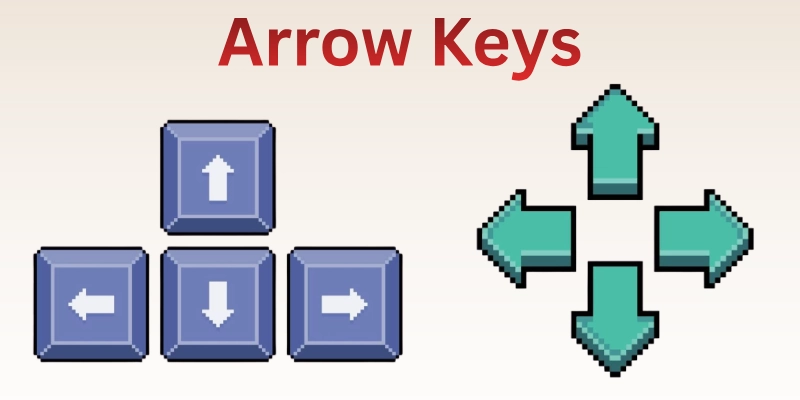
Arrow keys guide your cursor precisely across screens. They allow you to move up, down, left, or right. Navigation becomes easier when editing documents or browsing web pages. Many users underestimate their speed and accuracy benefits. Combining the arrow keys with shortcuts saves a lot of time. Practicing these keys improves control over text and files. Using them daily makes the computer work more smoothly and faster.
- Move the cursor accurately in all directions
- Navigate documents without using a mouse
- Edit text efficiently with the keyboard
- Scroll through pages smoothly and quickly
6. Home and End Keys
The Home and End keys move your cursor instantly. They help you quickly reach the beginning or end of a line. Many users find these keys essential for editing long documents. Learning their functions saves time during typing and navigation. Practicing them regularly improves your keyboard efficiency. Writers and coders benefit from this simple control. Using Home and End keys correctly reduces unnecessary scrolling.
- Jump to the start or end line.
- Navigate documents quickly without a mouse.
- Edit text efficiently and accurately
- Improve workflow with keyboard shortcuts
7. Page Up and Page Down Keys
The Page Up and Page Down keys scroll screens rapidly. They allow you to move through documents or web pages easily. Many tasks, like reviewing reports or reading articles, rely on these keys. Understanding their use saves time and prevents frustration.
Practicing them daily helps navigate content more smoothly. Users often combine these keys with other shortcuts for better control. Efficient use keeps your hands on the keyboard, reducing effort.
- Scroll pages up and down quickly
- Move through documents without a mouse
- Read content faster and more efficiently
- Navigate large files smoothly today
8. Select All
The Select All function highlights all content immediately. It helps you copy, cut, or format text in seconds. Many users rely on this command for faster editing. Mastering Select All. This reduces repetitive work and improves workflow. Combining it with other commands saves time in every task. Practicing this function improves your keyboard efficiency. Using Select All correctly makes document management easier and faster.
- Highlight entire text or content instantly.
- Copy or move content efficiently daily
- Edit documents faster with the command
- Manage files quickly without hassle
9. Copy, Cut, and Paste
Copy, cut, and paste are essential functions on a computer keyboard. They let you move or duplicate text, files, or folders quickly. Every user benefits from mastering these commands for efficiency. Practicing them daily improves your workflow and reduces repetitive work.
Many documents and projects rely on these functions to edit and organize content. Understanding shortcuts makes tasks faster and more accurate. Using Copy, Cut, and Paste correctly saves time every day.
- Copy selected text or files instantly
- Cut content to move elsewhere
- Paste items quickly where needed
- Save time while editing documents
- Organize files efficiently using shortcuts
10. Undo and Redo
Undo and Redo help you fix mistakes instantly. They let you reverse or repeat actions without losing progress. Many people rely on these functions for fast editing. Practicing Undo and Redo increases accuracy in typing or designing.
Using them reduces stress during long work sessions. These keys improve control over your documents and projects. Mastering Undo and Redo makes computer work much smoother.
- Undo mistakes to correct quickly
- Redo actions when needed again
- Reverse typing errors without hassle
- Repeat commands efficiently every time
- Save progress during long tasks
11. Shortcut Keys
Shortcut keys can significantly speed up your work. They allow you to execute commands with just a few keys. Many daily tasks, such as saving or printing, depend on these shortcuts. Learning them reduces mouse usage and increases productivity.
Practicing keyboard shortcuts regularly makes work faster and easier. Using these keys improves efficiency in both documents and web browsing. Everyone benefits from mastering essential shortcut keys on the keyboard.
- Save files quickly using shortcuts
- Print documents instantly without a mouse
- Open programs faster with keys
- Copy and paste efficiently always
- Switch applications smoothly with shortcuts
12. Lock Computer
Locking your computer instantly protects your files. It prevents unauthorized access when you step away. Many people use this function to maintain privacy at work or at home. Learning this function ensures your data remains safe.
Activating the lock key saves time compared to logging out completely. Using it regularly helps build secure computer habits. Practicing this simple step reduces stress about privacy and security.
- Protect your files from unauthorized access
- Activate the lock quickly with a keyboard shortcut
- Maintain privacy in shared environments
- Secure work efficiently every single time
- Build safe computer habits daily
13. Function Keys
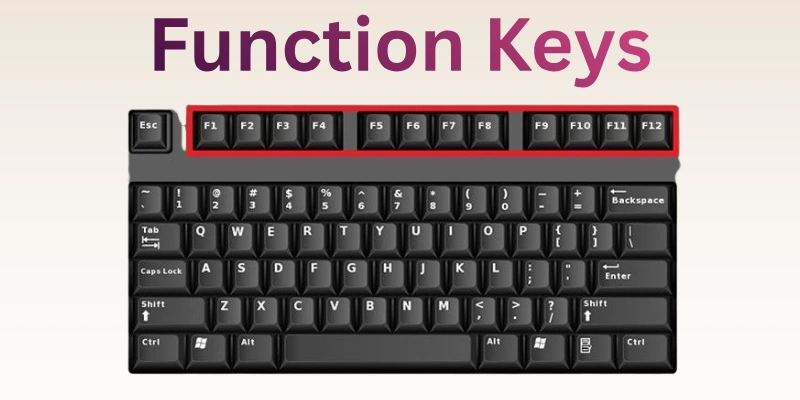
Function keys perform special tasks quickly. They help control software, media, and system settings. Many users rely on them for shortcuts that save time. Learning their purposes improves your efficiency on a computer. Practicing function keys regularly makes complex tasks easier. Each key from F1 to F12 has a unique role. Understanding these keys gives you more control and confidence in your work.
- Use F1 to open the help menu
- Adjust brightness with F5 and F6
- Control media playback using function keys
- Switch applications efficiently with shortcuts
- Perform tasks faster using the keyboard
Why the Functions of a Computer Keyboard Matter
A computer keyboard does much more than type words. Every key performs a task that helps you control your system and complete work smoothly. When you understand these functions, everyday computer activities become faster and easier. Skilled users rely on keyboard functions to save time and reduce effort. Learning these abilities can significantly improve how you interact with your computer.
- Better Productivity: Keyboard functions help complete tasks faster without relying heavily on a mouse.
- Improved Accuracy: Proper key usage reduces typing mistakes and keeps documents clean and organized.
- Faster Navigation: The Arrow, Home, and Page keys quickly move through files and pages.
- Efficient Editing: Commands like copy, paste, and undo simplify document changes instantly.
- Stronger Workflow: Consistent keyboard use supports smoother and more structured daily computer tasks.
- Time-Saving: Shortcut combinations perform actions quickly and reduce unnecessary steps.
- User Confidence: Understanding keyboard functions makes computer work easier and more comfortable.
Tips to Master the Functions of a Computer Keyboard
Many people use a keyboard every day but never learn its full potential. Small improvements in how you use the keys can make a big difference in speed and comfort. Understanding keyboard functions helps you work smarter instead of harder. With a little practice, you can control your computer more smoothly. Simple habits can turn an average user into a confident keyboard user.
- Practice Daily: Regular typing practice strengthens finger memory and helps you use keyboard functions naturally.
- Learn Shortcuts: Keyboard shortcuts allow you to perform actions quickly without opening multiple menus.
- Use Both Hands: Balanced hand movement increases typing speed and improves overall keyboard control.
- Focus on Accuracy: Careful typing reduces mistakes and keeps your work neat and professional.
- Memorize Key Positions: Knowing where keys sit helps your fingers move faster without looking down.
- Explore Function Keys: Trying different function keys reveals helpful tools for system control and productivity.
- Stay Consistent: Consistent keyboard use builds confidence and gradually improves your overall efficiency.
Conclusion
In this guide, we have covered the functions of a computer keyboard. You have learned how different keys support typing, editing, navigation, and system control. The best way to improve your skills is to balance understanding these functions with consistent practice during daily computer use.
This balanced approach helps you work faster while keeping your tasks simple and organized. I truly appreciate your time and attention as you read this article. Don’t skip the next part of the FAQs. I hope you will find something more interesting, so don’t miss it. If you miss it, you may lose something new.
FAQS: Functions of a Computer Keyboard
Before you finish this guide, let’s quickly look at some frequently asked questions about the functions of a computer keyboard.
The functions of a computer keyboard include typing text, entering numbers, and giving commands to a computer. Each key performs a specific task that helps users interact with software. Keyboards also allow quick navigation and editing in documents. Learning these functions improves speed and efficiency.
The functions of a computer keyboard help users control their computers easily. They allow faster typing, smoother navigation, and quick execution of commands. Without these functions, many tasks would take longer. Understanding them improves productivity and accuracy.
Most standard keyboards contain 101 to 104 keys, depending on the layout. These keys include typing keys, function keys, control keys, and navigation keys. Each group supports different functions of a computer keyboard. Together, they make computer interaction simple and efficient.
Typing keys include letters, numbers, and symbols used to write text. They form the largest group of keys on a keyboard. These keys support the main functions of a computer keyboard, such as writing emails and documents. Beginners use them the most.
Shortcut keys are key combinations that perform actions quickly. For example, Ctrl + C copies text, and Ctrl + V pastes it. These shortcuts reduce the need to use menus. They improve the efficiency of keyboard functions.
The Enter key confirms commands or starts a new text line. Many programs use this key to execute actions. It plays a major role in navigation and typing tasks. This makes it one of the basic functions of a computer keyboard.
The Alt key provides additional commands and shortcuts in many programs. It also helps open menu options in software. Combining Alt with other keys performs advanced tasks. This key increases keyboard functionality.
Navigation keys include arrow keys, Home, End, Page Up, and Page Down. These keys help move around between documents or screens. They make browsing and editing easier. They are essential for smooth computer use.


- Be Respectful
- Stay Relevant
- Stay Positive
- True Feedback
- Encourage Discussion
- Avoid Spamming
- No Fake News
- Don't Copy-Paste
- No Personal Attacks
- Be Respectful
- Stay Relevant
- Stay Positive
- True Feedback
- Encourage Discussion
- Avoid Spamming
- No Fake News
- Don't Copy-Paste
- No Personal Attacks
