Components of a Motherboard Boost Performance Stop Crashes
Published: 13 Feb 2026
Have you ever wondered why a motherboard looks so complex when you open a PC? Many people see tiny chips, small circuits, and different slots and feel completely lost. I remember the first time I removed a PC case and looked at it closely.
I did not understand what the RAM slot did or why the chipset mattered. Over the years, I built and repaired many systems, and I learned how each part connects and supports the others. I also learned that small mistakes, like placing RAM in the wrong slot, can stop a system from starting.
That real experience helped me understand things in a practical way, not just from books. Once you understand the components of a motherboard, everything starts to make sense. In this guide, we explain each part in a clear and simple way so you can understand your system with confidence.
Now let’s move forward and explore each part in detail so you can clearly understand how your motherboard functions inside your computer.
Components of a Motherboard Step By Step
A motherboard might look full of tiny chips, slots, and connectors, but each part has a clear purpose. Understanding these components makes building, upgrading, or troubleshooting a PC much easier. I’ll walk you through them step by step so everything clicks naturally.
Here is the complete list of all the important components of a motherboard.
- CPU socket
- RAM slots
- Power connectors
- Chipset
- BIOS/UEFI chip
- Expansion slots (PCIe, PCI)
- SATA and NVMe connectors
- USB headers
- Audio and network ports
- CMOS battery
Let’s see the main components in detail and understand what each part does inside your motherboard.
1. CPU Socket
Every computer relies on the brain of the system, and the CPU connects directly to the motherboard through a special interface. This interface allows the processor to communicate with memory, storage, and other components.
Installing the right CPU in the correct socket is crucial for stability and performance. Modern sockets support multiple generations of processors, but compatibility must be checked carefully. The socket design also helps with heat management when paired with proper cooling solutions. Understanding this part can save you time and prevent hardware damage.
- Supports specific CPU models only; check manufacturer guidelines.
- Holds the processor securely with locking mechanisms.
- Works with thermal paste and heatsinks for cooling efficiency.
- Allows communication with RAM and PCIe devices for speed.
- Pins or pads must align perfectly to avoid damage
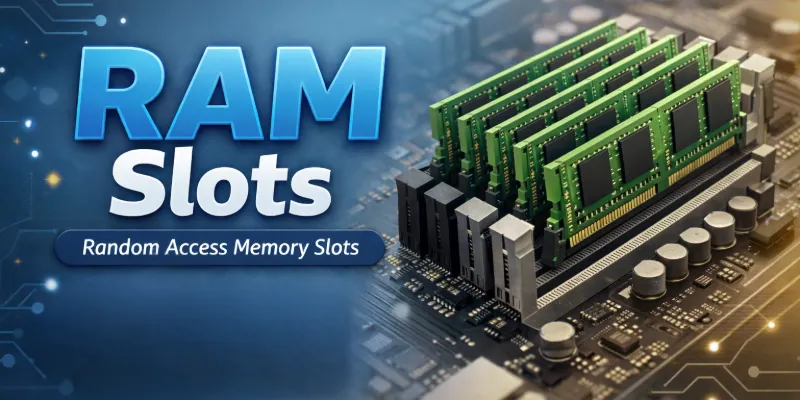
2. RAM Slots
Your system’s speed depends heavily on memory, which plugs directly into dedicated slots on the motherboard. These slots determine how much memory your PC can handle and the speed at which it operates. Most modern boards use DIMM slots that support DDR4 or DDR5 memory.
Placing modules in the correct order improves dual- or quad-channel performance. I’ve seen many systems underperform simply because RAM was installed in the wrong slot. Knowing how these slots work helps you maximize performance without unnecessary upgrades.
- Support single or dual memory sticks
- The notch prevents wrong installation
- Enables fast CPU-memory communication
- Protects against static damage
- The manual shows the optimal slot layout
3. Power Connectors
A stable flow of electricity keeps your motherboard running smoothly. Power connectors transfer energy from the PSU to the CPU, memory, and other devices. Without proper connections, the system may fail to start or behave unpredictably.
Modern motherboards include several types, like the 24-pin main and 8-pin CPU connectors. Each connector has a unique design to prevent mistakes during installation. Knowing how power is distributed helps your system perform reliably under load.
- 24-pin ATX supplies main motherboard power
- 8-pin CPU connector supports processor energy
- SATA connectors feed drives and SSDs
- Extra pins deliver power to GPUs
- Loose or incorrect cables cause failures
4. Chipset
The motherboard controls communication between all components, and the chipset plays a central role in this process. It manages data flow between the CPU, memory, storage, and expansion cards. Different chipsets support different features, so choosing the right one matters.
Modern chipsets allow faster USB, better networking, and improved overclocking. Many systems include integrated graphics support directly through the chipset. Learning how it works helps you pick the best board for your needs.
- Connect the CPU to the memory and storage
- Control PCIe lanes for expansion cards
- Manage onboard graphics if available
- Enable USB and network speed improvements
- Support overclocking and system tuning
5. BIOS/UEFI Chip
The motherboard includes a small chip that wakes the system before the operating system loads. It stores important firmware that tells the hardware how to operate. During startup, it checks all connected devices and initializes them properly.
Modern UEFI chips provide graphical menus for easier setup and configuration. Some chips also include security features like passwords and boot restrictions. Understanding this chip helps prevent startup problems and makes installing new hardware smoother.
- Allows updating firmware safely
- Manages fan and power settings
- Supports booting from multiple drives
- Enables system recovery if needed
- Protects against unauthorized access
6. Expansion Slots (PCIe, PCI)
Motherboards include slots that allow extra cards to be added for new features. These slots let you install graphics, sound, network, or Wi-Fi cards. Different types of slots offer varying speeds and capabilities. Older PCI slots support legacy hardware, while PCIe slots handle high-speed devices.
Proper installation ensures cards fit correctly and function without issues. Understanding these slots helps you upgrade or expand your system efficiently.
- PCIe supports fast modern graphics cards
- Some PCIe lanes share bandwidth limits
- Multi-slot GPUs need proper motherboard spacing
- Older PCI cards still work in certain boards
- Expansion options include sound and network cards
7. SATA and NVMe Connectors
Storage drives need fast, reliable communication with the motherboard. Traditional hard drives and SSDs connect using SATA cables. Ultra-fast NVMe drives plug into dedicated M.2 slots over the PCIe interface.
Correct installation ensures the system boots and operates smoothly. Using the right connector type prevents damage and compatibility issues. Knowing these connections helps you plan storage upgrades efficiently.
- M.2 NVMe slots offer maximum speed
- Some motherboards support dual NVMe drives
- SATA ports can enable RAID configurations
- Connector orientation prevents accidental damage
- Placement affects airflow and component cooling
8. USB Headers
Internal USB headers connect the motherboard to the case’s front and top ports. They transmit both data and power to peripherals like keyboards, mice, and external drives. Various headers support different USB standards, including 2.0, 3.0, and newer versions.
Correct pin alignment ensures devices function properly. Misaligned or loose connections can prevent recognition or cause malfunctions. Understanding these headers helps maintain fast and reliable peripheral performance.
- Type-C headers enable modern device connections
- Some headers provide additional power output
- USB 3.2 headers allow higher transfer speeds
- Pin layouts prevent accidental misconnection
- Front panel expansion can use multiple headers
9. Audio and Network Ports
Ports on the motherboard connect your PC to speakers, headphones, microphones, and networks. Sound quality improves when the correct audio ports are used. Wired connections provide stable and fast internet through dedicated network ports.
Advanced audio setups may include multiple channels or digital outputs for high fidelity. Proper port usage prevents device conflicts and ensures reliable operation. Learning which ports handle specific devices helps optimize your PC setup.
- RJ45 port supports gigabit internet speeds
- 3.5mm jacks handle surround sound systems
- S/PDIF allows digital audio connections
- Some boards include separate microphone inputs
- Port placement impacts cable management efficiency
10. CMOS Battery
A small battery powers the CMOS chip to preserve BIOS settings when the computer is turned off. Systems rely on it to keep date, time, and hardware configurations intact. Low or dead batteries can cause unexpected resets or boot issues.
Most motherboards use a coin-cell type, making replacements easy for users. Monitoring battery health prevents sudden configuration loss and system errors. Knowing its function helps maintain stable and reliable PC performance.
- Replacement restores BIOS stability quickly.
- Weak batteries may corrupt boot settings.
- Some motherboards show battery health status
- Coin-cell removal requires careful handling
- Battery life typically lasts several years
Essential Supporting Components of a Motherboard
Motherboards rely on several supporting components to keep the system running smoothly. These parts manage power, data flow, and connectivity between devices. Each component has a specific role that ensures stability, speed, and reliability. Knowing these supporting components helps you understand how a motherboard functions and how to upgrade it effectively.
Key supporting components.
- Voltage regulators: deliver stable and consistent power to CPU, RAM, and other critical chips, ensuring smooth performance under heavy load
- Capacitors and resistors: maintain smooth and stable electrical signals across the motherboard, preventing voltage spikes and system instability
- Chipset heatsinks: dissipate heat from the main chipset and important chips to avoid overheating and maintain optimal performance
- Clock generators: provide precise and synchronized timing for CPU, RAM, and expansion cards, keeping data transfer accurate and reliable
- Fan headers: connect multiple case or CPU fans and control their speed for efficient cooling and quiet operation
- Debug LEDs: visually indicate specific hardware errors or failures, helping users troubleshoot and fix issues quickly
How Components of a Motherboard Work Together
A motherboard’s components collaborate to ensure the system operates smoothly. Data moves seamlessly between the CPU, RAM, and storage for fast and reliable performance. Power is regulated and distributed to every chip, keeping the system stable. Peripheral ports, fans, and monitoring tools work in harmony to maintain efficiency and prevent hardware issues.
Key interactions between motherboard components.
- CPU and RAM: Exchange instructions and data continuously to run programs efficiently without delays or bottlenecks
- Voltage regulators: Manage and adjust electrical power to all components, preventing surges and protecting sensitive chips
- Fan headers: Connect and control multiple fans to maintain optimal airflow and prevent overheating during heavy workloads
- Expansion slots: Provide high-speed communication channels for graphics, network, and storage cards for improved system performance
- Peripheral ports: Allow keyboards, mice, drives, and other devices to communicate reliably with the motherboard
- Monitoring tools: Detect hardware errors, temperature spikes, and system failures, alerting users to fix issues quickly
- BIOS/UEFI chip: Coordinates startup processes and hardware initialization to ensure a stable system boot and configuration
- Chipset and buses: Facilitate smooth communication between CPU, memory, storage, and connected devices for consistent overall performance
Conclusion
In this guide, we have covered the components of a motherboard. Knowing how each component functions together allows you to build a PC that is fast and stable. It is important to balance power, memory, and peripheral connections so that every part works efficiently.
I personally recommend planning upgrades with attention to cooling, compatibility, and expansion features, as these decisions impact system performance. Thank you for reading this guide, and I hope it has been useful. Don’t skip the next part of the FAQs. I hope you will find something more interesting, so don’t miss it. If you miss it, you may lose something new.
FAQS: Components of a Motherboard
Let’s answer the most common questions about the components of a motherboard to help you understand them better and clear any doubts.
The CPU socket connects your processor to the motherboard. It ensures stable electrical contact so the CPU can communicate with RAM and other components. Choosing a compatible CPU socket is essential when upgrading or building a PC.
Power connectors provide electricity from the PSU to the CPU, RAM, and other components. Without them, your motherboard cannot function. Modern motherboards usually have a 24-pin main connector and an 8-pin CPU connector to deliver stable power.
A chipset acts as a communication hub between the CPU, memory, storage, and peripherals. It determines how fast and efficiently data flows across your system. Choosing a motherboard with a compatible chipset is crucial for performance and upgrades.
USB headers connect the motherboard to the front panel USB ports on your case. They allow keyboards, mice, drives, and other peripherals to communicate with your PC. Some headers support faster USB 3.0 or 3.2 speeds for improved data transfer.
The CMOS battery keeps BIOS settings saved when your PC is turned off. Without it, date, time, and hardware configurations may reset. Replacing the battery is simple and helps maintain system stability.
Yes, certain components like RAM, storage, and expansion cards can be upgraded. However, CPU upgrades depend on socket compatibility and chipset support. Knowing your motherboard’s components helps plan safe and effective upgrades.
Heatsinks and fan headers manage the temperature of the motherboard and CPU. Proper cooling prevents overheating, which can slow down or damage components. Motherboards with multiple fan headers allow better airflow and quieter operation.
The chipset and buses control how data flows between the CPU, memory, storage, and peripherals. Efficient communication ensures faster system performance and responsiveness. Choosing a motherboard with a modern chipset improves compatibility and speed.
No, motherboard compatibility depends on CPU socket type, chipset, and supported RAM standards. Using incompatible components can prevent the system from booting. Always check the motherboard manual for supported CPUs and RAM modules before buying. Checking specifications before purchase avoids errors and wasted time.






- Be Respectful
- Stay Relevant
- Stay Positive
- True Feedback
- Encourage Discussion
- Avoid Spamming
- No Fake News
- Don't Copy-Paste
- No Personal Attacks
- Be Respectful
- Stay Relevant
- Stay Positive
- True Feedback
- Encourage Discussion
- Avoid Spamming
- No Fake News
- Don't Copy-Paste
- No Personal Attacks
