Basic Computer Terminology Guide for Everyone Step by Step
Published: 9 Feb 2026
Computers run our world more than ever, and people rely on them daily for work, learning, communication, and even entertainment. For beginners, terms like CPU, RAM, files, and operating systems can feel confusing, making it hard to use devices efficiently.
I have guided many people who struggled with these concepts, and I have seen how their confidence grows as soon as they understand the basics. Learning these foundational terms not only makes technology easier to use but also saves time and reduces frustration.
In this guide, we have covered basic computer terminology in simple language, explained clearly with real examples, so you can navigate your computer smoothly and handle everyday tasks with confidence.
What is computer terminology?
Computer terminology is the language used to describe computer parts, programs, and processes. Understanding these words helps beginners use devices more confidently and avoid confusion.
It also makes learning new software and troubleshooting issues much easier. Knowing common terms allows users to communicate clearly about technology in work, school, or daily life.
- Words describing hardware components clearly
- Terms explaining software and programs
- Phrases used for networks and connections
- Vocabulary for storage and memory devices
Basic Computer Terminology Step by Step
Computers use many words that can feel confusing at first. Understanding these terms step by step makes it easier to navigate your device and work confidently. Once you know the basics, using software, hardware, and networks becomes much smoother.
Let’s take a look at the essential terms you should know.
- Hardware Terminology
- Software Terminology
- Memory Terminology
- Storage Terminology
- Network Term
- Internet Term
- Web Technology
- Common Computer
- Operating System-Specific Terms
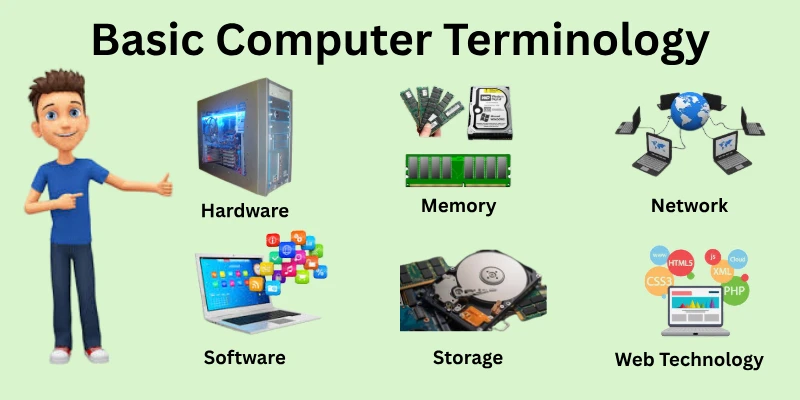
1. Hardware Terminology
Hardware includes all the physical components of a computer that you can see and touch. These parts work together to process information, store data, and display results on your screen.
Understanding hardware terms helps you make better decisions when buying, upgrading, or troubleshooting a device. Learning these basics step by step makes using computers much easier and more confident.
- Central Processing Unit (CPU): Acts as the brain of the computer, processing instructions and performing calculations for almost all tasks efficiently.
- Random Access Memory (RAM): Temporarily stores data for running programs and supports smooth multitasking without slowing down the system.
- Read-Only Memory (ROM): Contains permanent instructions essential for starting up the computer and initializing hardware correctly.
- Hard Drive / SSD: Saves all files, applications, and system information, allowing quick access and long-term storage of data.
- Motherboard: Serves as the main circuit hub that connects all hardware components and enables them to communicate properly.
- Graphics Processing Unit (GPU): Manages the rendering of images, videos, and animations for smooth visuals and better display performance.
- Input Devices: Physical tools like keyboards, mice, and scanners are used to enter data and interact with the computer.
- Output Devices: Devices such as monitors, printers, and speakers that present results or display information processed by the computer.
Software Terminology
Software consists of digital instructions that guide a computer’s behavior. It directs how systems operate and how users interact with devices. Hardware alone cannot perform meaningful actions without these instructions. Understanding software terms helps beginners recognize how computers follow commands and respond accurately.
- Operating System: Manages system resources and coordinates communication between hardware and programs.
- Application Programs: Provide user-focused tools designed for specific purposes across different fields.
- Utility Software: Supports system health by handling maintenance and background management tasks.
- Device Drivers: Act as translators that allow components to function correctly with the system.
- Security Software: Guards systems by detecting risks and blocking harmful digital activity.
- Development Tools: Enable creation and improvement of programs through structured coding environments.
Memory Terminology
Memory allows a computer to handle tasks quickly while it is running. It stores information that the system needs immediately to keep programs active and responsive. The amount and type of memory directly affect speed and multitasking ability. Learning memory terms helps beginners understand why computers slow down or perform smoothly.
- Random Access Memory: Temporarily stores active data and instructions, allowing applications to run without delay.
- Read-Only Memory: Contains fixed system instructions that help the computer start properly every time.
- Cache Memory: Stores frequently used information near the processor to reduce processing time.
- Virtual Memory: Uses reserved storage space to support operations when physical memory becomes limited.
- Memory Slots: Physical connectors on the motherboard that allow memory modules to be installed or upgraded.
- Memory Capacity: The total amount of memory available to handle tasks and processes efficiently.
Storage Terminology
Storage is used to save data for long-term use on a computer. It keeps files, software, and system information safe even when the device is powered off. Different storage types affect speed, capacity, and durability. Understanding storage terms helps users manage and protect their data effectively.
- Hard Disk Drive: Stores large volumes of data using spinning disks for permanent access.
- Solid State Drive: Saves data on flash memory, offering faster speed and reliability.
- External Storage Devices: Portable tools used to transfer or back up important files.
- Cloud Storage: Allows users to store and access data online from any location.
Network Term
A network connects multiple devices so they can share data and resources. It allows computers, printers, and servers to communicate within a specific area. Networks work without the internet and are common in homes, offices, and schools. Understanding network terms helps users manage connections and fix basic issues.
- Local Area Network: Connects devices within a small location, like a home, school, or office.
- Wide Area Network: Covers large geographic areas and links multiple smaller networks together.
- Network Devices: Includes routers, switches, and access points that manage data flow.
- IP Address: Identifies each device on a network so data reaches the correct destination.
- Bandwidth Capacity: Determines how much data a network can handle at one time.
- Network Security: Protects connected devices from unauthorized access and internal threats.
Internet Term
The internet connects millions of networks across the world. It allows users to access websites, send emails, and use online services instantly. Internet terms explain how information travels globally and reaches users quickly. Learning these basics helps beginners use online tools safely and effectively.
World Wide Web: System of linked websites and pages accessed through web browsers.
- Web Browser: Software that opens, displays, and navigates online content.
- Search Engine: A tool that helps users discover information using keywords.
- Domain Name: A human-readable address used to identify a website online.
- Web Hosting: A service that stores website files and delivers them to users.
- Internet Protocols: A set of rules that guide data transfer across networks.
Web Technology
Web technology powers how websites load, display, and interact with users online. It combines tools and languages that shape the structure, design, and behavior of web pages.
These technologies help users browse smoothly,and developers build reliable online experiences. Learning web technology basics helps beginners understand how the modern web actually works.
- HTML Structure: Defines the basic layout of web pages using elements like headings, text, and links.
- CSS Styling: Controls colors, fonts, spacing, and layout to improve visual appearance.
- JavaScript Functionality: Adds interactive features such as buttons, forms, and dynamic content updates.
- Web Servers: Store website files and send them to users when pages are requested.
- Client-Side Processing: Handles tasks in the user’s browser to improve speed and responsiveness.
- Server-Side Logic: Processes data on the server to manage requests and generate responses.
- Responsive Design: Adjusts web layouts automatically to fit different screen sizes and devices.
Common Computer Terms
Every computer has certain basic terms that users encounter regularly. Knowing these terms makes it easier to operate devices, troubleshoot issues, and communicate clearly about technology. Beginners often get confused by technical jargon, but understanding these concepts builds confidence. Learning these common terms step by step helps users feel more comfortable with computers.
- Input Devices: Tools like keyboards and mice that let users provide data to the computer.
- Output Devices: Components such as monitors and printers that display or deliver processed information.
- Peripheral Devices: External hardware like USB drives or scanners that expand computer capabilities.
- File Formats: Different ways data is stored, such as DOCX, PDF, or JPEG.
- Software Updates: Improvements or fixes released to enhance program performance and security.
- Network Connections: Ways computers link with others via LAN, Wi-Fi, or Bluetooth.
- User Interface: The visual layout and interactive elements that allow users to operate software.
Operating System-Specific Terms
An operating system (OS) manages computer hardware and software, allowing users to run applications smoothly. Each OS has unique features, tools, and terms that beginners need to understand.
Knowing these terms helps users navigate the system efficiently and troubleshoot basic issues. Learning OS-specific concepts improves confidence and reduces confusion while working on different devices.
- Graphical User Interface: Visual elements like windows, icons, and menus that make navigation easy.
- Command Line Interface: A text-based environment to execute commands directly for advanced control.
- File System: Organizes and stores data so files and folders can be accessed quickly.
- System Updates: OS improvements have been released to fix bugs and enhance security.
- Task Manager: Monitors running programs, memory usage, and system performance.
- Device Manager: Allows users to view, update, and troubleshoot hardware drivers.
- Startup Programs: Applications that automatically launch when the system starts to save time or enhance functionality.
Commonly Confused Computer Terms
Many beginners often mix up computer terminology, which can make using technology more confusing than it needs to be. Understanding these tricky terms helps you communicate clearly and avoid mistakes. Learning the differences builds confidence when working on computers and troubleshooting problems. By exploring these common confusions, users can get a clearer view of how computers actually work.
- Bit vs. Byte: A bit is the smallest data unit; a byte stores eight bits together for files and programs.
- ROM vs RAM: ROM holds permanent instructions for startup, and RAM temporarily stores active program data.
- LAN vs WAN: LAN connects devices in a small area, and WAN spans wide geographical locations globally.
- Hard Drive vs SSD: SSD stores data electronically, making it faster and more durable than HDD.
- Upload vs. Download: Upload sends files from your device online, and download saves files locally to your system.
- Software vs. Firmware: Software runs programs; firmware provides hardware with built-in instructions to operate correctly.
- Client vs. Server: The client requests services, and the server provides resources across the network efficiently.
- Cookie vs. Cache: Cookies store website preferences; cache saves temporary files for faster browsing.
Conclusion
In this guide, we have covered basic computer terminology. Knowing these terms allows you to communicate clearly about technology and avoid common mistakes. I suggest keeping a small reference list of key terms for quick learning and easy recall.
Practicing these terms while using your computer will help you remember them better. Exploring real examples of each concept makes learning more interactive and engaging.
Thank you for spending time here, and I hope it makes your computer experience smoother. Don’t skip the next part of the FAQs. I hope you will find something more interesting, so don’t miss it. If you miss it, you may lose something new.
FAQS: Basic Computer Terminology
Let’s discover answers to common queries about basic computer terminology and boost your knowledge.
Basic computer terminology refers to the essential words and phrases used to describe computer components, software, and processes. Understanding these terms helps beginners use computers efficiently. It forms the foundation for learning more advanced technology conc
Hardware terms include CPU, RAM, hard drive, SSD, and motherboard. These terms describe physical components of a computer. Knowing them helps you identify parts, upgrade systems, and fix basic problems.
RAM stands for Random Access Memory, which temporarily stores data while programs run. More RAM allows faster multitasking and smoother performance. Beginners should know this term to understand computer speed and efficiency.
An operating system (OS) is software that manages hardware and software resources. Common OSs include Windows, macOS, and Linux. Understanding this term helps beginners install software and operate computers effectively.
Troubleshooting is identifying and fixing problems with a computer. It can involve checking hardware, software, or network issues. Following step-by-step solutions helps prevent errors from becoming bigger problems. Learning this term empowers beginners to solve issues independently.
Multitasking is running multiple programs at the same time. It requires sufficient RAM and CPU speed. Effective multitasking can improve productivity and save time. Proper organization of open programs helps prevent confusion and slowdowns. Understanding this term helps beginners manage tasks efficiently.
A file extension is the ending of a file name that shows its type, like .docx or .jpg. It helps the system and users identify which program can open it. Knowing file extensions also helps prevent errors when saving or sharing files. Beginners benefit from knowing this for file management.
Cookies are small files stored by websites on your computer to save preferences and login info. They help provide a better browsing experience. Cookies can also track website activity to personalize content. Beginners should know this term to manage privacy settings effectively.
A network connects multiple computers or devices to share resources and data. LAN (Local Area Network) and WAN (Wide Area Network) are common types. Learning this term helps beginners understand the internet and local connections




- Be Respectful
- Stay Relevant
- Stay Positive
- True Feedback
- Encourage Discussion
- Avoid Spamming
- No Fake News
- Don't Copy-Paste
- No Personal Attacks
- Be Respectful
- Stay Relevant
- Stay Positive
- True Feedback
- Encourage Discussion
- Avoid Spamming
- No Fake News
- Don't Copy-Paste
- No Personal Attacks
