Advantages and Disadvantages of Keyboard for Efficient Typing
Published: 22 Mar 2026
Many people struggle with slow typing, constant errors, or wrist pain, even though they spend hours on a keyboard every day. These problems can make work stressful, reduce productivity, and even cause long-term discomfort.
By understanding the advantages and disadvantages of keyboard, you can take control of how you use it. I have personally seen how simple changes, like adjusting your typing posture or learning shortcuts, can dramatically increase speed and accuracy. Knowing both the benefits and the drawbacks helps you type efficiently, protect your hands, and get more done without unnecessary strain or frustration.
In this guide, we have covered all the key points to help you use your keyboard smarter and safer every day.
Now, let’s dive into the advantages and disadvantages of keyboards so you can see how they impact your daily work and learn the best ways to use them efficiently.
Important Advantages of Keyboard
Keyboards are more than just a typing tool. Have you ever wondered why they remain so important in every office, school, or home? Understanding their advantages can change the way you work and make your tasks faster and easier.
Here is the list of important pros of the keyboard.
- Fast Typing
- Accurate Data Entry
- Easy Navigation
- Supports Shortcuts
- Versatile Usage
- Improves Productivity
- Multilingual Typing
- Customizable Keys
- Enhances Communication
- Portable and Reliable
Let’s take a closer look at each advantage.
1. Fast Typing
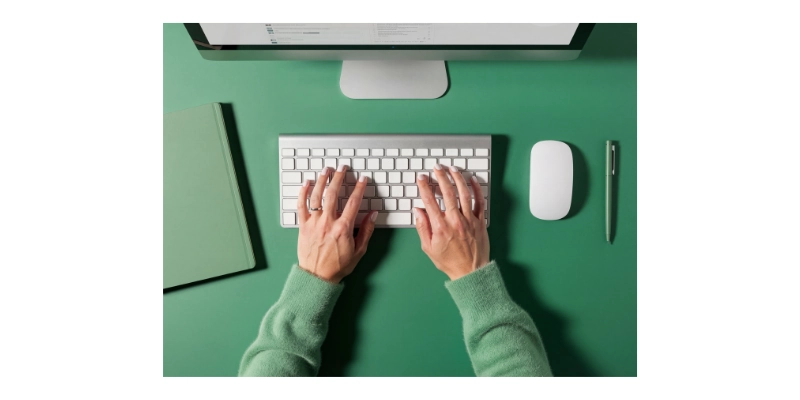
Typing quickly makes a huge difference in how much work you can finish in a day. When you use a keyboard properly, your speed increases naturally over time. Practising regularly helps reduce mistakes and improve confidence. Even short bursts of fast typing can save hours each week. Everyone who works on computers daily feels the benefit of typing efficiently.
- Practice regularly with typing exercises
- Keep fingers on the correct home row keys
- Use both hands evenly while typing
- Avoid looking at the keyboard while typing
- Maintain a steady rhythm without rushing
2. Accurate Data Entry
Entering information correctly is just as important as typing fast. Mistakes can cost time and create confusion in documents, spreadsheets, or reports. Paying attention to detail while using the keyboard helps prevent errors. Accuracy also builds trust when sharing work with others. Even small improvements in accuracy save effort and frustration over time.
- Double-check numbers and names before pressing enter
- Use software tools to highlight errors
- Take breaks to avoid fatigue
- Focus on one task at a time
- Maintain a calm and steady pace

3. Easy Navigation
Moving through files, documents, or web pages should feel smooth and effortless. A keyboard allows you to jump between sections without reaching for a mouse constantly. Learning shortcuts makes navigation faster and more precise. This skill is especially useful in large projects or research work. Efficient navigation reduces wasted time and keeps you organized.
- Use arrow keys for small movements
- Press Home or End to reach the start or end
- Use Page Up and Page Down for large jumps
- Combine Alt + Tab to switch between apps
- Learn common shortcuts for your software
4. Supports Shortcuts
Shortcuts make everyday tasks faster and smoother. They help you save time when opening programs or editing documents. Using shortcuts reduces reliance on the mouse and keeps your workflow uninterrupted.
Many professionals find that mastering key combinations boosts confidence while working. Even beginners can learn a few essential shortcuts quickly. When used consistently, shortcuts improve accuracy and efficiency. I have seen people cut hours off their work just by using them regularly.
- Press Ctrl + C to copy quickly
- Use Ctrl + V to paste instantly
- Apply Ctrl + Z to undo mistakes
- Try Alt + F4 to close windows
6. Versatile Usage
A keyboard is not limited to just typing. You can use it for gaming, coding, or controlling multimedia. Professionals in offices rely on keyboards for data entry, reports, and emails. Students use them for assignments, research, and online learning.
Keyboards adapt to many tasks, making them a universal tool. Even creative work, like music production or video editing, benefits from keyboard shortcuts. Using a keyboard in multiple ways saves both time and effort.
- Play games with specific control keys
- Write code efficiently for software projects
- Edit videos using key commands
- Control music or audio playback quickly
- Manage spreadsheets without touching the mouse
7. Improves Productivity
Being productive depends on working smarter, not harder. A keyboard allows you to complete tasks faster than using a mouse alone. With shortcuts and fast typing, you can finish reports and emails efficiently.
Even repetitive tasks feel simpler when you know key combinations. Keeping hands on the keyboard reduces wasted movements. Many people notice that they accomplish more work in less time when they master it. Practicing regularly strengthens speed and organisation for daily projects.
- Schedule tasks with keyboard-based shortcuts
- Switch between apps using Alt + Tab
- Quickly open files with command keys
- Organize documents without leaving the keyboard
- Automate repeated actions with macros
8. Customizable Keys
Many keyboards allow you to set keys for specific actions. This feature helps you perform repetitive tasks faster. Gamers and professionals often create macros to save time. Custom keys can run programs, open files, or execute commands with a single press.
Even beginners can benefit from learning how to adjust key functions. Changing key assignments makes your workflow smoother and more efficient. When used correctly, customizable keys turn your keyboard into a powerful tool for work and play.
- Assign macros for frequent tasks
- Set shortcuts for opening apps
- Customise gaming keys for actions
- Map special functions for software
- Adjust keys for faster workflow
9. Enhances Communication
A keyboard makes it easy to stay connected with others. You can type emails, chat messages, or social media posts quickly. Clear and fast typing improves how people understand your ideas. Students, professionals, and friends all rely on keyboards to communicate online.
Using proper shortcuts and hotkeys makes messaging more efficient. Even during group projects, keyboards help keep conversations organized. Effective keyboard use strengthens communication in every digital environment.
- Type emails quickly and clearly
- Send messages on online platforms
- Create posts for social media
- Chat with teammates efficiently
- Share documents while typing
10. Enhances Communication
A keyboard makes it easy to stay connected with others. You can type emails, chat messages, or social media posts quickly. Clear and fast typing improves how people understand your ideas. Students, professionals, and friends all rely on keyboards to communicate online.
Using proper shortcuts and hotkeys makes messaging more efficient. Even during group projects, keyboards help keep conversations organised. Effective keyboard use strengthens communication in every digital environment.
- Type emails quickly and clearly
- Send messages on online platforms
- Create posts for social media
- Chat with teammates efficiently
- Share documents while typing
Important Disadvantages of Keyboard
Even though keyboards make work easier, they come with certain drawbacks that many people overlook. Overusing a keyboard can cause fatigue, slowdowns, or mistakes if not used properly. Understanding these disadvantages helps you work smarter and stay healthy.
Let’s explore the main cons of using a keyboard:
- Wrist and finger strain
- Poor posture risk
- Reduced hand flexibility
- Needs typing skills
- Slows beginners
- Causes fatigue
- Higher error rate
- Not touch-friendly
- Needs a power supply
- Limited for drawing
Let’s break down the drawbacks of a keyboard.
1. Wrist and Finger Strain
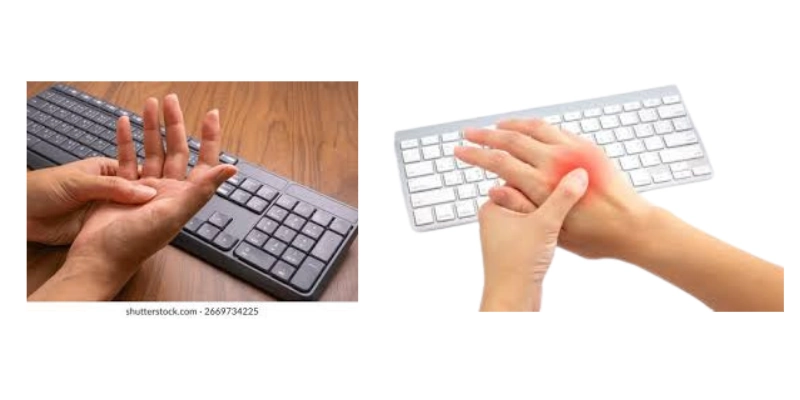
Long hours on a keyboard often create discomfort in small joints. Continuous tapping puts stress on delicate areas over time. This pressure can slowly turn into soreness if ignored. Many users do not notice early warning signs. Paying attention to these signals helps prevent serious issues. Healthy habits can protect you during daily computer use. I have noticed that small changes bring lasting relief.
- Keep your palms relaxed during long typing
- Maintain a neutral angle for better comfort
- Use ergonomic support for daily sessions
- Pause work after fixed time intervals
- Avoid hitting buttons with extra force
2. Poor Posture Risk
Sitting in the wrong way affects overall body balance. Many people lean forward without realizing it. This habit creates tension in the upper body area. Over time, discomfort may spread to other parts. Correct alignment keeps your body stable and supported. A well-arranged workspace improves daily comfort. I always recommend making small adjustments early.
- Keep your back straight against the chair support
- Place the monitor at the proper viewing height
- Rest both feet evenly on the floor
- Adjust the desk setup for better balance
- Avoid bending your neck for long periods
3. Reduced Hand Flexibility
Repeated actions can limit natural motion over time. Muscles may feel tight after continuous activity. This stiffness can reduce comfort during daily tasks. Ignoring this issue may affect performance later. Keeping your joints active supports better control. Regular movement helps maintain smooth motion. I have seen that active routines improve long-term comfort.
- Perform gentle stretches before starting work
- Take short pauses between typing sessions
- Rotate joints slowly to stay active
- Practice simple exercises during your daily routine
- Avoid staying still for extended periods
4. Needs Typing Skills
Learning to use a keyboard properly takes time and effort. Many users struggle at the beginning when they do not know the correct techniques. Slow progress can feel frustrating during daily tasks. Practice plays a big role in building confidence over time. Without proper learning, mistakes can increase and reduce efficiency. Developing this ability improves overall computer use. I have seen that consistent effort makes a big difference.
- Practice daily using structured typing lessons
- Learn correct finger placement from the start
- Follow guided exercises for skill improvement
- Use online tools for speed training
5. Slows Beginners
Starting with a keyboard can feel challenging for new users. They often take more time to complete simple tasks. Lack of familiarity creates hesitation during work. This delay can affect confidence and performance. With time, users begin to understand key positions better. Gradual improvement helps reduce this difficulty. I have noticed beginners improve quickly with patience.
- Start with simple tasks before complex work
- Focus on accuracy instead of speed first
- Use beginner-friendly typing practice programs
- Learn basic key positions step by step
6. Causes Fatigue
Working on a keyboard for long hours can feel exhausting. Continuous activity puts pressure on the body and mind. This tiredness can reduce focus and slow performance. Ignoring rest often makes the situation worse. Managing energy levels is important for better results. Small breaks can refresh your body quickly. I have found that balance improves long-term comfort.
- Take short breaks after fixed intervals
- Stretch your body to release built-up tension
- Keep work sessions limited and balanced
- Stay hydrated to maintain energy levels
7. Higher Error Rate
Mistakes often happen when users type too quickly or without focus. Even experienced people can press the wrong keys by accident. Small errors can add up in documents or data sheets. Paying attention while typing reduces unnecessary corrections.
Consistent practice helps lower mistakes over time. Checking your work regularly prevents bigger problems later. I have noticed that careful typing greatly improves accuracy.
- Review text before final submission
- Use software tools to highlight mistakes
- Focus on one task at a time
- Slow down when typing important content
8. Not Touch-Friendly
Traditional keyboards are not designed for touch-based input. They cannot handle gestures or direct taps like screens. This makes them less suitable for some modern devices. Users who prefer touch may struggle with certain tasks. Switching between keyboard and touchscreen can feel inconvenient. Knowing this limitation helps plan the workflow better. I often suggest combining tools for maximum efficiency.
- Use keyboard alongside touch-enabled devices.
- Learn shortcut keys for faster work.
- Adjust workflow to match device type.
- Choose hybrid tools when possible.
9. Needs a power supply.
Keyboards require electricity or a battery to function properly. Wireless models depend on charged batteries for smooth use. Wired keyboards need a constant connection to work. Without power, even simple typing tasks cannot be completed.
Users must plan to avoid interruptions during work. Reliable power ensures consistent productivity and prevents frustration. I always recommend keeping spare batteries or a backup option.
- Keep spare batteries for wireless keyboards
- Connect wired keyboards to stable sources
- Charge devices before long work sessions
- Monitor battery levels regularly during use
10. Limited for Drawing
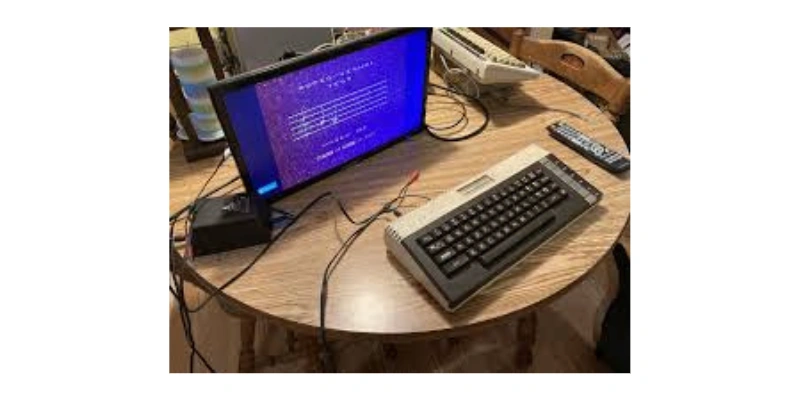
Keyboards are mainly for text and commands, not art creation. They cannot replace tools like styluses or drawing pads. Users trying to draw will find them inefficient. This limitation affects graphic design or digital artwork. Knowing this prevents wasted time and frustration. Using the right tool improves quality and speed. I have seen artists benefit from switching to proper devices.
- Use tablets for artistic projects instead.
- Combine keyboard with drawing software shortcuts.
- Rely on a stylus for precise input
- Avoid using the keyboard alone for designs
Tips to Improve Keyboard Efficiency
Using a keyboard efficiently can save you a lot of time and make work easier. Small adjustments in your typing habits can create big results. With the right techniques, you can reduce mistakes and work faster. Practising smart strategies helps you get more done with less effort.
- Position hands correctly: Keep your fingers close to the home row and maintain proper hand placement to type faster and avoid strain on joints.
- Maintain a steady posture: Sit upright with your back fully supported, keep your shoulders relaxed, and adjust your chair height for comfortable typing.
- Use keyboard shortcuts: Learn common commands and combinations that allow you to copy, paste, undo, or switch apps without touching the mouse.
- Practice regularly: Dedicate short daily sessions to typing exercises, focus on speed and accuracy, and gradually challenge yourself with longer texts.
- Take short breaks: Pause every hour, stretch your fingers and wrists, and let your eyes rest to prevent fatigue and improve focus.
- Stay organised: Keep your workspace tidy, arrange documents logically, and plan your workflow to reduce unnecessary hand movement while typing.
- Choose the right keyboard: Select a keyboard that fits your workflow, whether ergonomic for comfort, mechanical for speed, or portable for mobility.
Conclusion: Advantages and Disadvantages of Keyboard
In this guide, we have covered the advantages and disadvantages of keyboard. While keyboards make work faster and easier, overuse or poor habits can cause strain and errors. I recommend balancing their use with proper posture, short breaks, and regular practice to reduce risks and stay comfortable.
By managing these limitations carefully, you can enjoy all the benefits without facing problems. Thank you for taking the time to read this guide, and I hope it helps you improve your typing experience. Don’t skip the next part of the FAQs. I hope you will find something more interesting, so don’t miss it. If you miss it, you may lose something new.
FAQS: Advantages and Disadvantages of Keyboard
Let’s explore the most asked questions on the advantages and disadvantages of keyboard.
Keyboards allow fast typing, accurate data entry, and easy navigation. They improve productivity and help with multitasking. Using a keyboard efficiently saves time for both work and study. Many people also find that learning shortcuts further increases speed and reduces effort, especially during long sessions.
Maintain a neutral wrist position and avoid bending your fingers unnaturally. Take short breaks every hour and stretch your hands. Using ergonomic keyboards can also reduce strain significantly. Simple hand exercises before typing sessions further prevent soreness and long-term injury.
Keyboards let you type faster than writing or using other input methods. Shortcuts reduce repetitive actions and save time. Efficient use allows multitasking without constantly switching devices. People who master key combinations complete tasks faster and make fewer errors in daily work.
Ergonomic keyboards are designed to reduce strain and improve comfort. They support natural hand and wrist positions. Many users find them helpful for long hours of typing. They can also prevent repetitive stress injuries and make typing more pleasant during daily use.
Practice regularly using typing exercises or online typing tools. Learn proper finger placement and avoid looking at the keys. Gradually increasing speed helps improve accuracy and confidence. Consistent practice also strengthens memory for key positions, making typing feel natural over time.
Beginners often press the wrong keys due to unfamiliarity. Fast typing without attention increases mistakes. Practising slowly at first improves accuracy over time. Using spell check or proofreading tools also helps reduce errors during typing tasks.
Yes, most keyboards support multilingual typing with language settings. Switching layouts allows typing in different scripts easily. This is useful for students, professionals, or content creators. Many people also use special keyboard stickers or software to learn new layouts faster.
Take short breaks, stretch fingers, and rotate wrists. Avoid pressing keys too hard or holding hands in one position. Light exercises maintain flexibility and reduce discomfort. This also improves typing speed and reduces the chance of strain injuries over time.




- Be Respectful
- Stay Relevant
- Stay Positive
- True Feedback
- Encourage Discussion
- Avoid Spamming
- No Fake News
- Don't Copy-Paste
- No Personal Attacks
- Be Respectful
- Stay Relevant
- Stay Positive
- True Feedback
- Encourage Discussion
- Avoid Spamming
- No Fake News
- Don't Copy-Paste
- No Personal Attacks
