Advantages and Disadvantages of Input Devices Complete Guide
Published: 26 Feb 2026
Have you ever wondered why your keyboard sometimes slows you down or why a mouse feels uncomfortable after long hours? That’s exactly why knowing the advantages and disadvantages of input devices matters.
From speed and comfort to accuracy and compatibility, these devices shape your entire computer experience. In this article, we have covered everything you need to know about input devices, their pros and cons, and how choosing the right one can make your daily work faster, easier, and more comfortable.
I will also share tips from my own experience that help you pick the best device for your needs. By the end, you will clearly understand which input devices truly improve productivity and which ones may cause more trouble than they are worth.
Let’s not wait any longer and dive straight into this article about the advantages and disadvantages of input devices to see which ones really improve productivity.
Advantages and Disadvantages of Input Devices Step By Step
The way you interact with your computer can change everything about your work and efficiency. Each input device has its own strengths and weaknesses that affect speed, accuracy, and comfort. In this article, we will explore each device step by step so you can understand its advantages and disadvantages clearly.
Let’s jump into the details and see which devices work best for you.
- Keyboard
- Mouse
- Touchscreen
- Scanner
- Joystick
- Trackball
- Light Pen
- Graphics Tablet
- Microphone
- Web Camera
- Gamepad
- Biometric Devices
- Digital Pen
- Motion Sensors
Let’s take a closer look at each input device.
1. Keyboard
Keyboards are one of the most essential input devices for any computer user. They let you type quickly, control software, and communicate efficiently. Choosing the right keyboard improves your speed, comfort, and overall productivity. Even small changes in layout or design can make a noticeable difference in your work.
Uses
- Create written documents efficiently
- Enter numbers and data accurately
- Send emails and messages daily
Advantages
- Speeds up data entry tasks
- Supports multiple key combinations
- Provides tactile feedback while typing
Disadvantages
- It can cause hand fatigue quickly
- Requires desk space to operate
- Keys may wear out fast
Tip: Pick a keyboard with soft, well-spaced keys to reduce hand strain and type faster.
2. Mouse
The mouse is a crucial input device for navigating computers easily. It helps you point, click, and select items faster than a keyboard alone. Using the right mouse improves precision and reduces hand strain. Over time, it becomes an extension of your hand, making tasks smoother and more efficient.
Uses
- Move the cursor across the screen
- Select and open files quickly
- Scroll through documents and websites
Advantages
- Offers precise pointer control
- Makes navigation faster and easier
- Supports customizable button functions
Disadvantages
- Can cause wrist discomfort over time
- Requires a flat surface for operation
- Buttons may become unresponsive quickly
Tip: Choose an ergonomic mouse to reduce wrist fatigue during long work sessions.
3. Touchscreen
A touchscreen allows users to control a device by tapping the display. Many modern devices rely on this technology for everyday tasks. It creates a hands-on digital experience without complex setup. People of all ages can learn to use it quickly.
Uses
- Select options with simple taps
- Type messages on virtual keys
- Drag items across the screen
Advantages
- Reduces the need for external devices
- Supports multi-touch commands
- Simplifies the user interaction process
Disadvantages
- The screen attracts dust and smears
- Less suitable for precise editing
- May respond slowly sometimes
Tip: Use a screen protector to maintain smooth touch performance and improve durability.
4. Scanner
A scanner captures printed pages and creates digital records. It supports smooth document handling in offices and homes. Many people use it to manage paperwork more efficiently. This device helps reduce manual filing tasks. It also improves access to stored information when needed.
Uses
- Upload signed agreements online
- Preserve old family pictures
- Send hard copy forms digitally
Advantages
- Enhances document processing efficiency
- Supports optical character recognition
- Maintains original layout quality
Disadvantages
- Consumes electricity during operation
- Produces bulky digital files
- Requires proper driver installation
Tip: Select the correct file format before scanning to avoid compatibility issues later.
5. Joystick
A joystick is a hand-operated device designed for directional commands. It plays an important role in simulation environments and entertainment systems. Users rely on it when they need precise physical input. Its structure allows flexible movement in multiple directions.
Uses
- Fly virtual planes in simulators
- Drive racing vehicles in games
- Manage robotic equipment remotely
Advantages
- Delivers stable motion response
- Improves hand coordination skills
- Feels natural during extended sessions
Disadvantages
- Takes time to master
- Occupies dedicated desk space
- Sensitive parts may wear
Tip: Adjust calibration settings regularly to maintain accurate performance.
6. Trackball
A trackball is a stationary pointing device with a ball that you roll to move the cursor. It provides precise control without moving the entire device. Many users prefer it when desk space is limited.
Trackballs are popular in design studios and control rooms for accuracy. This device reduces hand movement while maintaining speed and precision.
Uses
- Navigate desktop applications efficiently
- Control graphics in design software
- Operate point of sale systems
- Move the cursor in a limited space
Advantages
- Saves desk space during work
- Offers high cursor accuracy
- Reduces wrist movement strain
Disadvantages
- Requires hand coordination practice
- It can feel awkward for beginners
- The ball may accumulate dirt quickly
Tip: Clean the trackball regularly to keep smooth cursor movement and accurate response.
7. Light Pen
A light pen is a pen-shaped input device used to select objects directly on a screen. It works by detecting light from the display when you touch it.
Many designers and engineers use it for drawing and precise selections. This device allows quick interaction with graphical interfaces. It also helps reduce extra clicks compared to a mouse in certain tasks.
Uses
- Draw graphics directly on screen
- Select menu options quickly
- Annotate images for projects
- Highlight text in digital documents
Advantages
- Enables precise on-screen selections
- Reduces time for graphical tasks
- Improves accuracy in drawings
- Supports interactive design workflows
Disadvantages
- Works only with compatible screens
- It can cause hand fatigue quickly
- Limited use outside graphics tasks
Tip: Hold the light pen steadily to improve accuracy and reduce errors while working.
8. Graphics Tablet
A graphics tablet is a flat input device used for digital drawing and design. It allows users to create precise artwork using a stylus instead of a mouse.
Many artists and designers rely on it for professional projects. This device supports smooth, natural hand movements on digital surfaces. It also improves productivity by making detailed edits faster and easier.
Uses
- Create digital sketches and illustrations
- Design layouts for websites professionally
- Edit photographs with precision
- Annotate documents and presentations
Advantages
- Offers high drawing accuracy
- Supports pressure-sensitive stylus control
- Reduces hand fatigue compared to a mouse
- Enhances creative workflow efficiency
Disadvantages
- Can be expensive for beginners
- Requires practice for accurate drawing
- Needs compatible software to function
- The stylus may lose sensitivity over time
Tip: Adjust stylus settings to match hand pressure for smoother and more natural strokes.
9. Microphone
A microphone converts sound waves into digital signals for recording or communication. It is essential in video calls, podcasts, and audio production. Many professionals and students rely on microphones for clear sound input.
This device helps capture voices, instruments, and environmental sounds accurately. Using the right microphone improves clarity and reduces background noise during recordings.
Uses
- Record voices for podcasts clearly
- Communicate during online video calls
- Capture musical instruments precisely
- Conduct interviews or voiceovers professionally
Advantages
- Produces clear and accurate sound
- Enhances audio recording quality
- Reduces background noise effectively
- Supports multiple recording environments
Disadvantages
- Sensitive to unwanted noise
- Requires proper setup for clarity
- May need external software support
Tip: Position the microphone correctly to capture sound clearly and avoid distortions.
10. Web Camera
Capturing live video, a webcam allows real-time communication over the internet. Many people use it for online meetings, classes, and streaming. High-quality webcams provide clear images even in low-light conditions. Users rely on it to share visuals and interact remotely. Proper placement and lighting can greatly improve video clarity and experience.
Uses
- Attend video conferences from home
- Stream live events or gameplay
- Record tutorials and educational content
- Monitor security remotely online
Advantages
- Provides clear real-time video
- Supports remote communication easily
- Improves virtual collaboration efficiency
- Compatible with multiple software programs
Disadvantages
- Quality is affected by poor lighting
- Requires a high-speed internet connection
- Limited field of view sometimes
- Can drain system resources quickly
Tip: Position your webcam at eye level and check lighting for best video results.
11. Gamepad
Designed for gaming, a gamepad lets players control video games easily. Many gamers prefer it for console and PC gameplay. Buttons and joysticks provide quick responses for actions and movements. It helps improve reaction time and overall control during fast-paced games. Ergonomic designs reduce hand fatigue during long gaming sessions.
Uses
- Play action and adventure games
- Control racing and sports games
- Navigate characters in role-playing games
- Operate multiplayer online games efficiently
Advantages
- Offers comfortable hand positioning
- Improves gameplay reaction speed
- Supports multiple button configurations
- Enhances overall gaming experience
Disadvantages
- Limited use outside gaming
- Can cause wrist strain sometimes
- Requires batteries or charging regularly
- Not ideal for precise editing
Tip: Choose a gamepad with ergonomic grips to maintain comfort during extended gameplay.
12. Biometric Devices
Biometric devices identify individuals using unique physical traits. Fingerprints, facial recognition, and iris scans are commonly used methods. Organizations rely on these devices for secure access and authentication. They improve safety by reducing the risk of unauthorized entry. With proper setup, biometric systems provide fast and accurate identification for users.
Uses
- Control access to secure areas
- Track employee attendance efficiently
- Verify identities in banking systems
- Authenticate users for mobile devices
Advantages
- Provides high security and safety
- Reduces the chances of identity fraud
- Speeds up verification processes
- Requires minimal manual intervention
Disadvantages
- Can be expensive to install
- May fail with damaged fingerprints
- Privacy concerns for some users
- Needs regular system maintenance
Tip: Ensure sensors are clean for accurate scanning and consistent performance.
13. Digital Pen
A digital pen allows users to write or draw directly on digital devices. Many students and professionals rely on it for note-taking and creative work. It captures handwriting accurately and converts it into editable text. Using a digital pen enhances productivity and reduces paper use. Its precision makes it ideal for design, illustration, and detailed annotations.
Uses
- Take notes on tablets easily
- Draw sketches and illustrations digitally
- Annotate documents for editing purposes
- Sign digital forms securely online
Advantages
- Converts handwriting into editable text
- Improves efficiency for note-taking
- Reduces paper usage effectively
- Provides precise drawing control
Disadvantages
- Needs compatible devices to function
- Can run out of battery quickly
- Requires learning for accurate use
- May malfunction with low-quality screens
Tip: Calibrate the digital pen before use to ensure accuracy and smooth input.
14. Motion Sensors
Motion sensors detect movement in a specific area and convert it into electronic signals. Many modern devices rely on them for security and automation. They help trigger alarms, lights, or cameras when movement is detected. Using motion sensors enhances safety and convenience in homes and workplaces. Proper installation ensures accurate detection and reduces false alerts.
Uses
- Activate lights automatically at night
- Trigger alarms for security purposes
- Control smart home appliances efficiently
- Monitor movements in restricted areas
Advantages
- Provides real-time movement detection
- Enhances safety and security
- Reduces energy consumption automatically
- Supports various smart devices
Disadvantages
- Can trigger false alarms sometimes
- Limited range in large areas
- Sensitive to pets and small objects
- Requires regular maintenance checks
Tip: Place sensors strategically to cover all critical areas for accurate monitoring.
Latest Trends in Input Devices Technology
Input devices have evolved significantly over the past few years. Modern devices focus on improving user experience, accuracy, and speed. Many manufacturers are integrating advanced features like touch sensitivity, wireless connectivity, and voice recognition.
Users now demand devices that are ergonomic, reliable, and compatible with multiple platforms. Smart input devices are becoming common in gaming, design, and professional work. These trends show how technology continues to make interactions faster, easier, and more intuitive for everyone.
Key Trends
- Wireless connectivity advancement: Devices now connect seamlessly without cables, reducing clutter and improving portability.
- Enhanced touch sensitivity: Touchscreens and styluses detect even the lightest inputs for precise control.
- Voice-controlled input: Speech recognition allows hands-free operation and faster commands.
- Biometric integration: Devices now include fingerprint or facial recognition for security and personalization.
- Ergonomic design improvements: Manufacturers focus on comfort to reduce hand and wrist strain during prolonged use.
- Haptic feedback technology: Input devices provide tactile responses for more interactive and realistic experiences.
- Multi-device compatibility: Modern devices work across computers, tablets, and smartphones without extra setup.
- AI-powered predictive input: Some devices anticipate user actions, making typing, drawing, and navigation faster.
Conclusion
In this guide, we have covered the advantages and disadvantages of input devices. Every input device has its strengths and weaknesses, so it is important to choose the right one for your needs. I recommend balancing their benefits with potential risks by maintaining devices properly and using them carefully.
Small precautions, like regular cleaning and safe handling, can reduce problems and improve efficiency. Thank you for reading, and I hope this guide helps you make better decisions. Don’t skip the next part of the FAQs. I hope you will find something more interesting, so don’t miss it. If you miss it, you may lose something new.
FAQS: Advantages and Disadvantages of Input Devices
Here are the most common questions and answers about the advantages and disadvantages of input devices to help you understand them clearly.
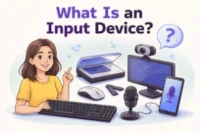
Input devices are tools that allow users to enter data or commands into a computer. Examples include keyboards, mice, scanners, and microphones. They act as the bridge between humans and computers. Without them, interacting with a computer would be impossible.
Input devices are essential because they allow computers to receive instructions and data. Without them, a computer cannot function effectively. They make tasks like typing, drawing, or gaming possible. They also improve efficiency and accuracy in data entry.
Consider the type of tasks you do most often, like typing, gaming, or designing. Check ergonomics, compatibility, and budget. Reviews and recommendations help identify reliable options. Choosing the right device improves comfort, speed, and productivity.
The future includes voice commands, gesture control, virtual reality controllers, and brain-computer interfaces. These devices aim to make computing more intuitive and immersive. They will improve accessibility for users with disabilities. Input devices will continue evolving for faster, smarter interactions.
Input devices like keyboards, mice, and tablets make online learning interactive. They allow students to type, draw, and navigate learning apps. They improve engagement and participation. Schools often use interactive whiteboards for better learning.
Yes, some input devices require high system resources. Devices with poor drivers can slow down responsiveness. High-quality devices ensure smooth operation. Performance depends on compatibility with your operating system.
Graphics tablets allow precise drawing and designing on computers. They replicate pen-on-paper experiences digitally. They are ideal for artists, architects, and engineers. They improve workflow efficiency for creative tasks.

- Be Respectful
- Stay Relevant
- Stay Positive
- True Feedback
- Encourage Discussion
- Avoid Spamming
- No Fake News
- Don't Copy-Paste
- No Personal Attacks
- Be Respectful
- Stay Relevant
- Stay Positive
- True Feedback
- Encourage Discussion
- Avoid Spamming
- No Fake News
- Don't Copy-Paste
- No Personal Attacks
